
You’ve spent hours perfecting a Word document — the formatting is clean, the fonts are right, the layout is exactly how you want it. Then you send it to someone and it arrives completely different. Wrong fonts. Shifted paragraphs. Broken layout. This is the classic Word document problem — and it happens because not everyone has the same version of Microsoft Word installed.
The fix is simple: convert your Word document to PDF before sharing. A PDF looks identical on every device, every operating system, every screen. This guide shows you exactly how to convert Word to PDF online, free, in under a minute.
Why Convert Word to PDF?
Word documents are great for editing — but they have real limitations when it comes to sharing:
- Formatting consistency — PDF looks identical on every device. Word documents shift layout depending on the software version and operating system
- Universal compatibility — Everyone can open a PDF. Not everyone has Microsoft Word installed
- Prevent editing — Share documents without allowing others to modify content
- Professional appearance — PDFs look polished and finished for client submissions and official documents
- Smaller file size — PDF versions of Word documents are often significantly smaller
- Print consistency — PDFs print exactly as designed on any printer
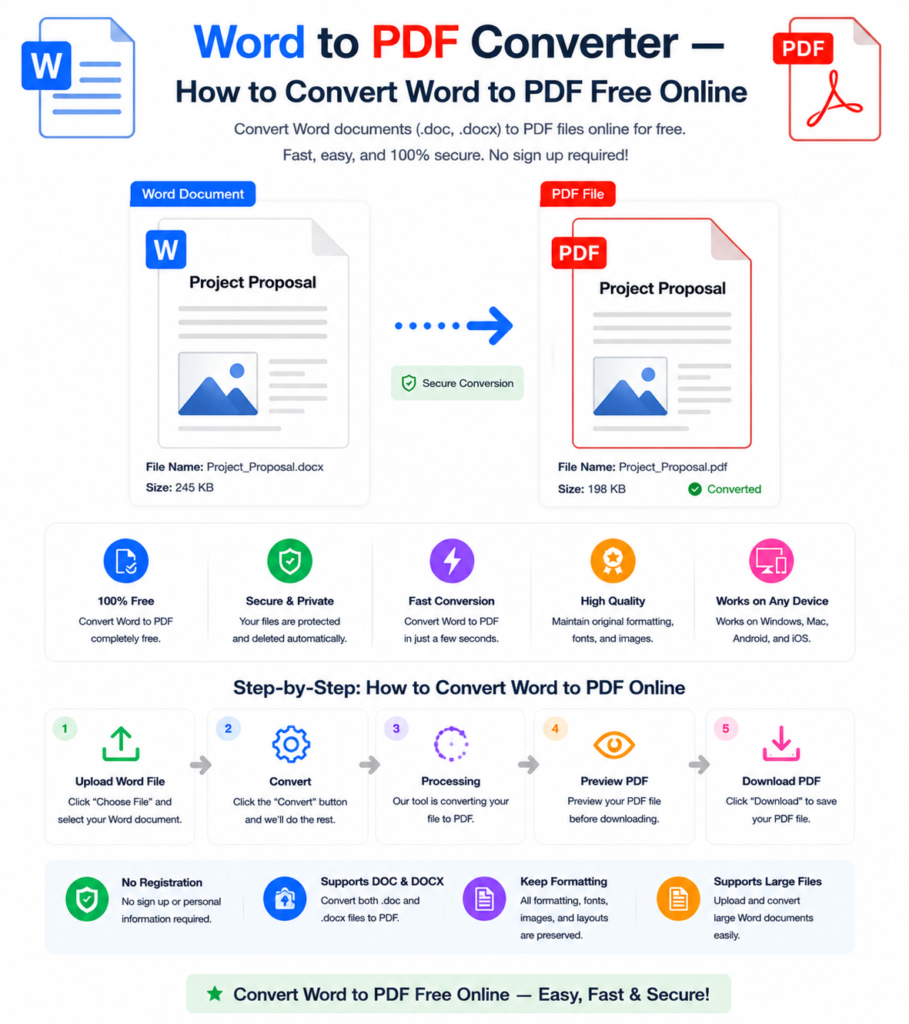
How to Convert Word to PDF Online — Step by Step
Using the free Word to PDF converter at OneClickPDFConvert takes under a minute:
Step 1 — Open the Word to PDF Tool
Go to oneclickpdfconvert.com and select Word to PDF Converter. No account, no signup — ready instantly.
Step 2 — Upload Your Word File
Click to upload or drag and drop your .docx or .doc file. Both old and new Word formats are fully supported.
Step 3 — Convert
Click Convert. The tool processes your Word document and generates a perfectly formatted PDF — fonts, images, tables, and layout all preserved exactly as they appear in Word.
Step 4 — Download Your PDF
Click Download. Your Word document is now a professional PDF — ready to share, email, print, or submit.
Will My Word Formatting Be Preserved in the PDF?
This is the most important question — and the answer is yes, for the vast majority of Word documents. Here’s what converts perfectly:
- Fonts and typography — bold, italic, underline, font sizes
- Page layout — margins, columns, page size
- Tables — borders, cell formatting, merged cells
- Images — photos, diagrams, charts embedded in the document
- Headers and footers — page numbers, document titles
- Lists — bullet points and numbered lists
- Text colours and highlighting
- Hyperlinks — preserved as clickable links in the PDF
What doesn’t transfer to PDF:
- Macros and VBA code — these are Word-specific features
- Track changes and comments — these are editing features, not final document content
- Form fields — interactive Word forms become static in PDF
Convert Word to PDF on Mac
Mac users have a built-in option — File → Print → Save as PDF — but it can produce inconsistent results with complex formatting. The online converter is more reliable:
- Open oneclickpdfconvert.com in Safari or Chrome
- Select Word to PDF
- Upload your .docx file
- Convert and download
Convert Word to PDF on Windows Without Microsoft Word
Don’t have Microsoft Word installed? No problem. The online converter works with any .docx or .doc file — you don’t need Word installed on your computer at all. Just upload the file and convert.
This is particularly useful when you receive a Word file from someone but only need to share it as a PDF — no editing required, no software needed.
Convert Word to PDF on iPhone and Android
Need to convert on mobile? The Word to PDF converter works on any mobile browser:
- Open oneclickpdfconvert.com on your phone
- Tap Word to PDF Converter
- Upload your .docx file from your device or cloud storage (Google Drive, iCloud, Dropbox)
- Convert and download the PDF
This is perfect when someone emails you a Word document and you need to forward it as PDF — all done from your phone in under a minute.
Convert Multiple Word Documents to PDF
Need to convert a batch of Word files? Convert them one by one using the tool, then use the PDF merge tool to combine them into a single document if needed.
For regular batch conversion needs, this two-step process is the most reliable free approach.
Word to PDF vs Google Docs to PDF
Working in Google Docs instead of Word? The conversion process is similar:
- Google Docs built-in: File → Download → PDF Document — works well for most documents
- Online converter: Download as .docx first, then convert via OneClickPDFConvert for better formatting control on complex documents
For simple documents, the Google Docs built-in export is sufficient. For documents with complex formatting, tables, or custom fonts — the online converter produces more consistent results.
How to Convert Word to PDF While Keeping Hyperlinks
Hyperlinks in Word documents are preserved as clickable links in the PDF output — readers can click them directly in the PDF. This is important for:
- Reports with reference links
- CVs and portfolios with website or LinkedIn links
- Presentations with source citations
The conversion preserves all hyperlinks automatically — no extra steps needed.
Common Word to PDF Problems and Solutions
Fonts Look Different in the PDF
This happens when your Word document uses fonts not installed on the conversion server. Use common fonts like Arial, Times New Roman, Calibri, or Georgia for guaranteed consistency. Alternatively, embed fonts in Word before converting: File → Options → Save → tick “Embed fonts in the file.”
Images Are Missing or Moved
Images set as “In line with text” in Word convert most reliably. Images with “floating” wrap settings sometimes shift position. Change image layout to “In line with text” in Word before converting for best results.
Page Breaks Are in the Wrong Place
Check that your Word document uses explicit page breaks (Ctrl+Enter) rather than relying on spacing to create visual breaks. Explicit page breaks convert reliably; spacing-based breaks may shift.
PDF File Is Too Large
After converting, use the PDF compressor to reduce file size before emailing or uploading.
Word to PDF for Specific Use Cases
CVs and Resumes
Always send your CV as PDF — never as a Word document. PDF guarantees your carefully designed CV looks identical to every recruiter, regardless of their software or operating system. This is perhaps the single most important Word to PDF use case.
Business Proposals and Reports
Professional documents sent to clients or management should always be PDF. It signals that the document is final and prevents accidental or deliberate editing.
Academic Submissions
Many universities and submission portals require PDF format. Convert your Word assignment to PDF before submitting to ensure your formatting is preserved exactly as you intended.
Legal Documents
Contracts, agreements, and legal correspondence should always be shared as PDF — the format provides a fixed record of the document as it appeared at the time of sharing.
Final Thoughts
Converting Word to PDF is one of the most common and important document tasks — and one of the easiest when you use the right tool. Whether you’re sending a CV, sharing a report, submitting an assignment, or finalising a contract — PDF is the format that guarantees your document looks exactly as you intended.
No software. No cost. No formatting surprises.
👉 Convert Word to PDF free — try it now at OneClickPDFConvert
Frequently Asked Questions About Word to PDF Conversion
Is the Word to PDF converter free?
Yes — completely free. No account, no subscription, no hidden charges.
Will my Word formatting be preserved in the PDF?
Yes — fonts, images, tables, headers, footers, and layout all convert accurately for standard Word documents.
Can I convert .doc and .docx files?
Yes — both old (.doc) and new (.docx) Word formats are fully supported.
Do I need Microsoft Word installed to convert?
No — the online converter works without Word installed on your device.
Can I convert Word to PDF on my phone?
Yes — works on iPhone and Android in any mobile browser. No app download needed.
Will hyperlinks in my Word document work in the PDF?
Yes — hyperlinks are preserved as clickable links in the PDF output.
How do I reduce the PDF file size after conversion?
Use the PDF compressor tool at OneClickPDFConvert to reduce file size after converting.
Is my Word document safe when uploaded?
Yes — files are processed securely and automatically deleted from servers after conversion.