
You’ve built a presentation — polished slides, custom fonts, embedded images, carefully designed layouts. Then you need to share it with someone who doesn’t have PowerPoint. Or you need to send it by email without risking the formatting falling apart on their device. Or you simply want a fixed, uneditable version for a client or employer.
Converting PowerPoint to PDF solves all of these problems instantly. A PDF version of your presentation looks identical on every device — no missing fonts, no shifted elements, no layout surprises. This guide shows you how to do it free, online, in under a minute.
Why Convert PowerPoint to PDF?
PowerPoint files are great for editing and presenting — but they have limitations when it comes to sharing:
- Universal compatibility — Not everyone has PowerPoint installed. PDFs open on every device without any software
- Formatting consistency — Custom fonts, layouts, and design elements look identical on every device in PDF format
- Smaller file size — PDF versions of presentations are often significantly smaller than .pptx files
- Prevent editing — Share your presentation without allowing others to modify your slides
- Easy printing — PDFs print consistently on any printer without layout issues
- Professional submission — Many job applications, academic submissions, and client portals require PDF format
- Email friendly — PDFs attach and open reliably in all email clients
How to Convert PowerPoint to PDF Online — Step by Step
Using the free PowerPoint to PDF converter at OneClickPDFConvert takes under a minute:
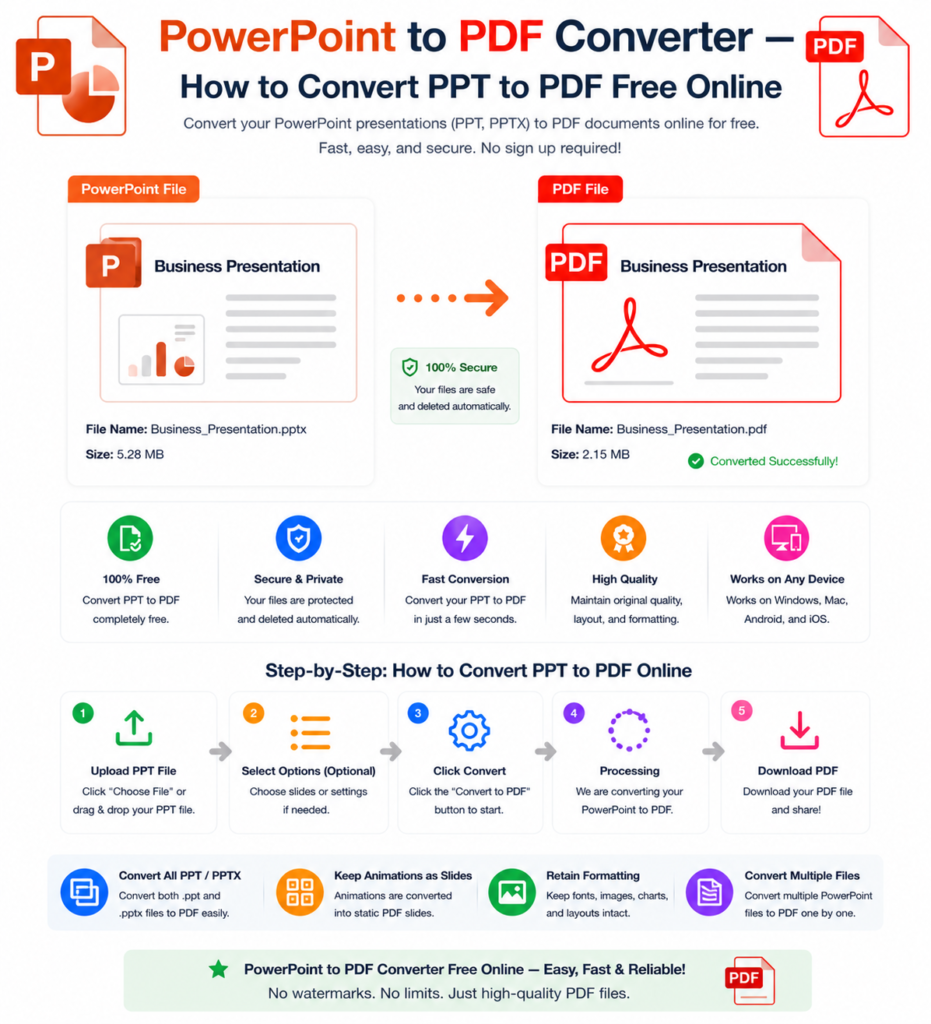
Step 1 — Open the PowerPoint to PDF Tool
Go to oneclickpdfconvert.com and select PowerPoint to PDF from the tools menu. No account, no signup — ready immediately.
Step 2 — Upload Your PowerPoint File
Click to upload or drag and drop your .pptx or .ppt file. Both old and new PowerPoint formats are fully supported.
Step 3 — Convert
Click Convert. The tool processes your presentation and generates a PDF where each slide becomes a page — with all fonts, images, shapes, and design elements preserved exactly as they appear in PowerPoint.
Step 4 — Download Your PDF
Click Download. Your PowerPoint presentation is now a perfectly formatted PDF — ready to share, email, print, or submit.
Will My PowerPoint Formatting Be Preserved in the PDF?
This is the key concern — and the good news is that for most standard presentations, formatting converts accurately. Here’s what transfers well:
- Slide layouts and backgrounds
- Text formatting — fonts, sizes, colours, bold, italic
- Images, photos, and diagrams embedded in slides
- Shapes, icons, and SmartArt graphics
- Charts and data visualisations
- Tables with formatting
- Slide transitions are not included — PDFs are static documents
- Animations are not included — PDF shows the final state of each slide
What doesn’t transfer:
- Slide animations and transitions — PDFs are static
- Embedded videos — video thumbnails may appear but videos won’t play
- Audio clips — sound doesn’t carry over to PDF
- Speaker notes — these can sometimes be included as a separate section depending on export settings
Convert PowerPoint to PDF on Mac
Mac’s built-in PowerPoint alternative (Keynote) and the browser-based PowerPoint both have PDF export options — but results can be inconsistent with complex slides. The online converter handles most presentations more reliably:
- Open oneclickpdfconvert.com in Safari or Chrome
- Select PowerPoint to PDF
- Upload your .pptx file
- Convert and download
Convert PowerPoint to PDF on Windows Without PowerPoint
Don’t have Microsoft PowerPoint installed? No problem. The online converter processes .pptx and .ppt files without any software on your device. Just upload and convert.
This is perfect when you receive a presentation file and only need to share it as PDF — no editing required, no software licence needed.
Convert PowerPoint to PDF on iPhone and Android
Need to convert a presentation on mobile? The PowerPoint to PDF converter works on any mobile browser:
- Open oneclickpdfconvert.com on your phone
- Tap PowerPoint to PDF
- Upload your .pptx file from your device or cloud storage
- Convert and download the PDF
Works on iPhone Safari, Chrome for Android, and all major mobile browsers.
Convert Google Slides to PDF
Working in Google Slides instead of PowerPoint? You have two options:
- Google Slides built-in: File → Download → PDF Document — works well for most presentations
- Online converter: Download your Google Slides as .pptx first, then convert via OneClickPDFConvert for better formatting control on complex presentations
For simple presentations, the Google Slides built-in export is perfectly adequate. For presentations with complex custom fonts or advanced formatting, the online converter produces more consistent results.
PowerPoint to PDF for Specific Use Cases
Job Applications and Portfolios
Many job seekers build their portfolio or work samples as PowerPoint presentations. Converting to PDF ensures recruiters see your work exactly as designed — regardless of what software they have installed.
Client Presentations
Sending a business proposal, pitch deck, or project presentation to a client? PDF is the professional choice — it’s fixed, uneditable, and guaranteed to look right on any device.
Academic Presentations
Submitting presentation slides to a university portal or lecturer? Most academic systems prefer or require PDF format. Converting before submission avoids formatting issues.
Conference and Event Materials
Speaker slide decks shared as conference materials are almost always distributed as PDF — so attendees can view them on any device after the event.
Training Materials
Employee training presentations shared across an organisation need to look consistent for every person. PDF guarantees uniformity regardless of device or software version.
How to Include Speaker Notes in the PDF
If you want your presenter notes included in the PDF output, the best approach is:
- In PowerPoint: File → Print → Under Settings, change “Full Page Slides” to “Notes Pages”
- Print to PDF (Save as PDF) — this creates a PDF with slides and notes together
Alternatively, export twice — once as slides-only PDF for the audience, once as notes pages PDF for yourself.
Reduce PowerPoint PDF File Size
Presentations with many high-resolution images can produce large PDFs. After converting, use the PDF compressor to reduce file size before emailing or uploading — particularly important if the file needs to go through email systems with attachment size limits.
Common PowerPoint to PDF Problems and Solutions
Custom Fonts Look Different in the PDF
This happens when your presentation uses fonts not available on the conversion server. Embed fonts in PowerPoint before converting: File → Options → Save → tick “Embed fonts in the file.” Alternatively, use standard fonts like Arial, Calibri, or Times New Roman for guaranteed consistency.
Images Are Blurry in the PDF
Very large presentations are sometimes compressed during conversion. For best image quality, ensure your original images are high resolution before inserting them into PowerPoint.
Slide Background Colours Are Missing
This occasionally happens with theme-based background colours. Try saving the PowerPoint file with a fresh theme applied before converting.
PDF Has Blank Pages
Blank slides in the original presentation become blank pages in the PDF. Delete any empty slides in PowerPoint before converting.
PDF File Is Too Large to Email
Use the PDF compressor after converting to reduce file size significantly while maintaining acceptable visual quality.
Final Thoughts
Converting PowerPoint to PDF is one of the simplest ways to make your presentations universally shareable and professionally presentable. Whether you’re sending to a client, submitting to a portal, distributing conference materials, or simply backing up your work in a stable format — PDF is the right choice.
No software. No cost. No compatibility worries.
👉 Convert PowerPoint to PDF free — try it now at OneClickPDFConvert
Frequently Asked Questions About PowerPoint to PDF Conversion
Is the PowerPoint to PDF converter free?
Yes — completely free. No account, no subscription, no hidden charges.
Will my slide formatting be preserved in the PDF?
Yes — layouts, images, shapes, charts, and text formatting all convert accurately for standard presentations.
Can I convert .ppt and .pptx files?
Yes — both old (.ppt) and new (.pptx) PowerPoint formats are fully supported.
Do I need Microsoft PowerPoint installed to convert?
No — the online converter works without PowerPoint on your device.
Can I convert PowerPoint to PDF on my phone?
Yes — works on iPhone and Android in any mobile browser. No app download needed.
Are animations included in the PDF?
No — PDFs are static documents. Animations and transitions are not included. The PDF shows the final state of each slide.
How do I include speaker notes in the PDF?
Export as Notes Pages from PowerPoint’s print settings to include speaker notes in the PDF output.
Is my presentation file safe when uploaded?
Yes — files are processed securely and automatically deleted from servers after conversion.