
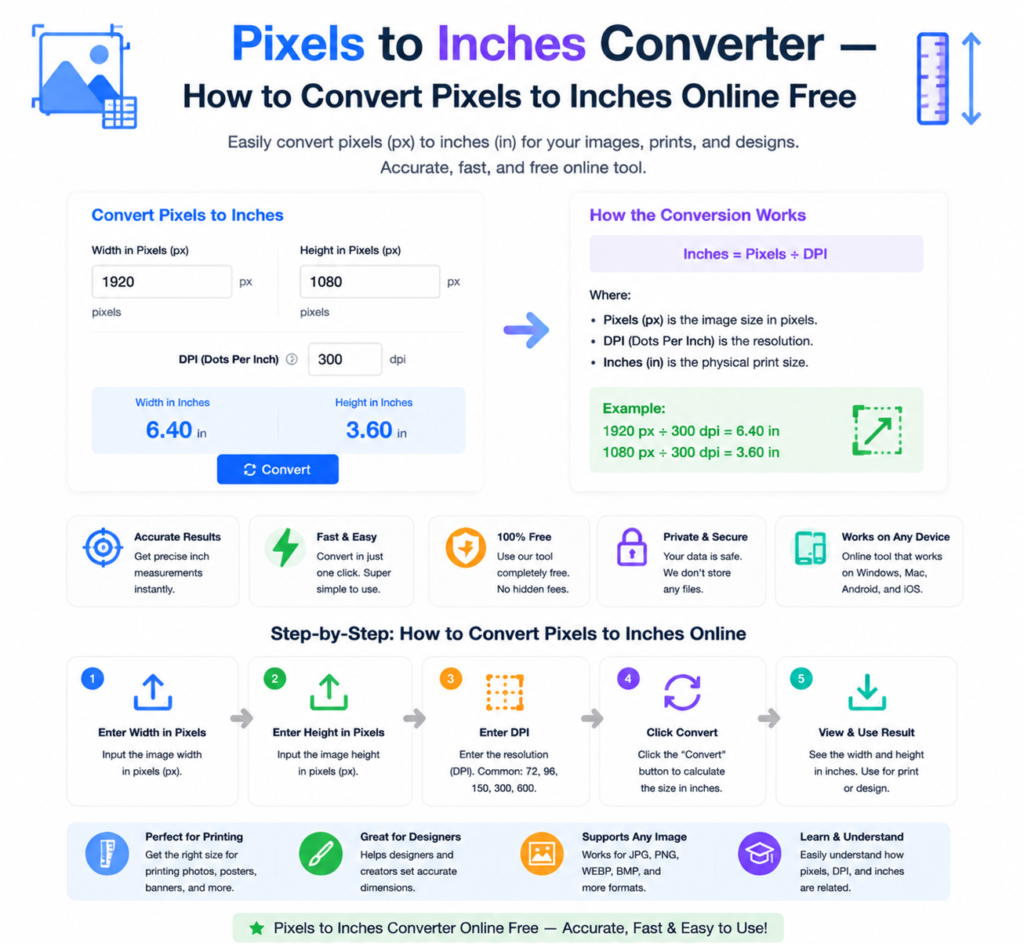
You’re preparing an image for print — a photo, a design, a document. Your software shows dimensions in pixels. The printer wants inches. The two don’t match up unless you know the DPI. Confused? You’re not alone. This is one of the most common questions designers, photographers, and everyday users run into.
This guide explains exactly how a pixels to inches converter works, what DPI means, and how to get the right dimensions every single time.
What Is a Pixel?
A pixel — short for picture element — is the smallest unit of a digital image. Every photo, screenshot, and graphic on your screen is made up of millions of tiny pixels arranged in a grid. Screen dimensions are measured in pixels: a Full HD screen is 1920 × 1080 pixels, for example.
Pixels are a digital measurement. They have no fixed physical size — a pixel on a large monitor is physically bigger than a pixel on a small smartphone screen showing the same resolution.
What Is DPI and Why Does It Matter?
DPI stands for Dots Per Inch — and this is the key that connects pixels to physical measurements like inches.
DPI tells you how many pixels are packed into one inch of printed or displayed output:
- 72 DPI — Standard screen resolution. Used for web images and digital display.
- 96 DPI — Windows default screen resolution.
- 150 DPI — Acceptable for large format prints viewed from a distance.
- 300 DPI — Standard for professional print quality. Sharp and crisp at normal viewing distance.
- 600 DPI — Used for very fine print work like business cards and detailed graphics.
The higher the DPI, the more pixels per inch — meaning sharper, more detailed output at the same physical size.
How to Convert Pixels to Inches — The Formula
The conversion is straightforward once you know the DPI:
Inches = Pixels ÷ DPI
Examples:
- 1200 pixels at 300 DPI = 1200 ÷ 300 = 4 inches
- 2400 pixels at 300 DPI = 2400 ÷ 300 = 8 inches
- 800 pixels at 72 DPI = 800 ÷ 72 = 11.11 inches
- 1920 pixels at 96 DPI = 1920 ÷ 96 = 20 inches
The reverse — inches to pixels — works the other way:
Pixels = Inches × DPI
- 4 inches at 300 DPI = 4 × 300 = 1200 pixels
- 8.5 inches at 300 DPI = 8.5 × 300 = 2550 pixels
How to Use the Pixels to Inches Converter Online
Rather than calculating manually, use the free pixels to inches converter at OneClickPDFConvert for instant results:
Step 1 — Open the Converter
Go to oneclickpdfconvert.com and select Pixels to Inches Converter. Opens instantly — no account needed.
Step 2 — Enter Your Pixel Value
Type the number of pixels you want to convert — for example, 2400.
Step 3 — Enter Your DPI
Enter the DPI value. Use 300 for print quality, 72 or 96 for screen/web use.
Step 4 — Get Your Result
The converter instantly shows the equivalent measurement in inches — and often centimetres and millimetres as well for convenience.
Common Pixel to Inch Conversions at 300 DPI (Print Quality)
| Pixels | Inches at 300 DPI |
|---|---|
| 300 px | 1 inch |
| 600 px | 2 inches |
| 900 px | 3 inches |
| 1200 px | 4 inches |
| 1500 px | 5 inches |
| 1800 px | 6 inches |
| 2100 px | 7 inches |
| 2400 px | 8 inches |
| 2550 px | 8.5 inches (Letter width) |
| 3300 px | 11 inches (Letter height) |
| 2480 px | 8.27 inches (A4 width) |
| 3508 px | 11.69 inches (A4 height) |
Common Pixel to Inch Conversions at 72 DPI (Screen/Web)
| Pixels | Inches at 72 DPI |
|---|---|
| 72 px | 1 inch |
| 144 px | 2 inches |
| 288 px | 4 inches |
| 720 px | 10 inches |
| 1080 px | 15 inches |
| 1440 px | 20 inches |
What DPI Should I Use?
This depends entirely on what you’re creating:
- Website images and social media — 72 or 96 DPI is sufficient. Higher DPI adds file size without visible benefit on screen.
- Standard printing — documents, reports, flyers — 150 to 200 DPI is acceptable. 300 DPI gives noticeably sharper results.
- Professional printing — photos, business cards, brochures — 300 DPI minimum. 600 DPI for very fine detail work.
- Large format printing — banners, posters viewed from a distance — 72 to 150 DPI is fine because the viewing distance compensates for lower resolution.
Why Does My Image Look Fine on Screen But Blurry When Printed?
This is the classic DPI confusion problem — and it’s incredibly common.
An image might be 800 × 600 pixels. On screen at 72 DPI, it displays at about 11 × 8 inches — perfectly acceptable. But send it to a printer set at 300 DPI, and that same 800 × 600 image prints at only 2.7 × 2 inches — or stretched to larger size, it looks blurry and pixelated.
The fix is to always check that your image has enough pixels for the print size you need at 300 DPI. Use the formula: required pixels = print size in inches × 300.
Pixels to Inches for Common Design Tasks
A4 Document at 300 DPI
A4 is 8.27 × 11.69 inches. At 300 DPI: 2480 × 3508 pixels. This is the standard canvas size for print-ready A4 documents in Photoshop, Illustrator, and Canva.
US Letter at 300 DPI
Letter is 8.5 × 11 inches. At 300 DPI: 2550 × 3300 pixels.
Business Card at 300 DPI
Standard business card is 3.5 × 2 inches. At 300 DPI: 1050 × 600 pixels.
Social Media Images (Screen — 72/96 DPI)
- Instagram post: 1080 × 1080 pixels
- Facebook cover: 820 × 312 pixels
- Twitter/X header: 1500 × 500 pixels
- LinkedIn banner: 1584 × 396 pixels
Pixels vs Resolution vs DPI — Clearing Up the Confusion
- Pixels — The total number of dots in an image (e.g., 2400 × 3000)
- Resolution — Often used interchangeably with DPI, technically means pixels per unit of measurement
- DPI (Dots Per Inch) — How many pixels fit in one inch of output — determines print size and quality
- PPI (Pixels Per Inch) — Same concept as DPI but used specifically for screens and digital displays
For practical purposes, DPI and PPI are used interchangeably in most design and printing contexts.
How to Check the DPI of an Existing Image
Not sure what DPI your image is set to? Here’s how to check:
- Windows — Right-click the image file → Properties → Details tab → look for Horizontal resolution and Vertical resolution
- Mac — Open in Preview → Tools → Show Inspector → Image DPI shows in the info panel
- Photoshop — Image → Image Size → Resolution field shows current DPI
- Online — Upload to an image info tool for instant DPI and dimension details
Final Thoughts
Converting pixels to inches is simple once you understand the DPI relationship. For print work, always design at 300 DPI and calculate your pixel dimensions accordingly. For screen and web use, 72 or 96 DPI is perfectly sufficient.
The pixels to inches converter takes the maths out of it entirely — enter your pixels, enter your DPI, and get your answer instantly.
👉 Convert pixels to inches free — try it now at OneClickPDFConvert
Frequently Asked Questions About Pixels to Inches Conversion
How do I convert pixels to inches?
Divide the pixel value by the DPI: Inches = Pixels ÷ DPI. For example, 1200 pixels at 300 DPI = 4 inches.
What DPI should I use for printing?
300 DPI is the standard for professional print quality. 150 DPI is acceptable for larger prints viewed from a distance.
What DPI should I use for web and screen images?
72 or 96 DPI is standard for screen and web images. Higher DPI adds file size without visible benefit on screen.
How many pixels is 1 inch at 300 DPI?
1 inch at 300 DPI = 300 pixels. At 72 DPI, 1 inch = 72 pixels.
What pixel size do I need for an A4 print at 300 DPI?
A4 at 300 DPI requires 2480 × 3508 pixels.
Why does my image look blurry when printed?
Your image doesn’t have enough pixels for the print size at 300 DPI. Use the formula: pixels needed = print size in inches × 300.
Is the pixels to inches converter free?
Yes — completely free. No account, no signup, instant results.