
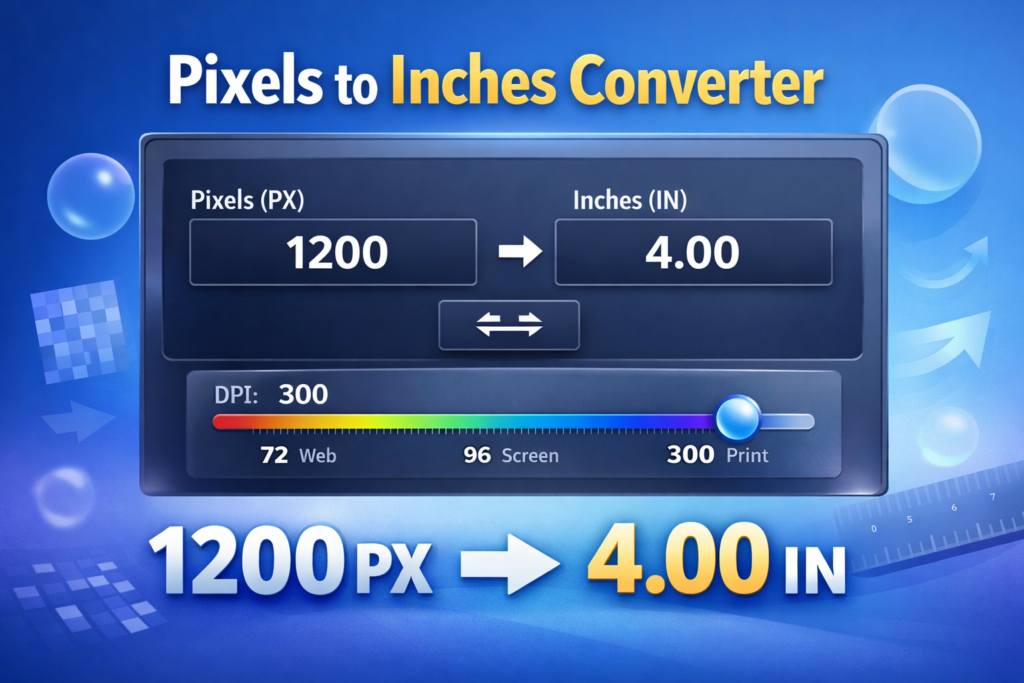
The Pixels to Inches Converter is a simple yet powerful tool that helps you convert pixels (PX) into inches (IN) and inches into pixels instantly. Whether you are a graphic designer, web developer, photographer, or someone working with digital images, understanding the relationship between pixels and inches is essential.
Many people struggle to determine the physical size of an image when they only know its pixel dimensions. This is where a Pixels to Inches Converter becomes extremely useful. By entering the pixel value and DPI (dots per inch), you can quickly find out the actual size of an image in inches.
This tool saves time, improves accuracy, and eliminates the need for manual calculations.
What is a Pixel?
A pixel is the smallest unit of a digital image displayed on a screen. Every image you see on a computer, smartphone, or tablet is made up of thousands or even millions of pixels.
The number of pixels determines the resolution of an image. Higher pixel counts usually mean better image quality and more detail. However, pixels alone do not tell you the physical size of an image when printed or displayed.
That is why using a Pixels to Inches Converter is important when working with digital graphics.
What is DPI in Pixel Conversion?
DPI stands for dots per inch, and it plays a major role when converting pixels into inches. DPI indicates how many pixels fit within one inch of physical space.
For example:
- 72 DPI – commonly used for web graphics
- 96 DPI – standard screen resolution
- 300 DPI – high-quality print resolution
When you use a Pixels to Inches Converter, the DPI value determines how large or small the image will appear in real-world measurements.
How Pixels to Inches Conversion Works
The Pixels to Inches Converter works using a simple mathematical formula.
Inches = Pixels ÷ DPI
Pixels = Inches × DPI
For example:
- An image with 1200 pixels at 300 DPI will have a width of 4 inches.
- An image with 600 pixels at 300 DPI will equal 2 inches.
Instead of calculating this manually, the Pixels to Inches Converter performs the calculation instantly and provides accurate results.
How to Use the Pixels to Inches Converter
Using the Pixels to Inches Converter is quick and easy.
Step 1: Enter Pixel or Inch Value
Start by entering a value in either the pixels field or the inches field. The tool will automatically update the other field.
Step 2: Adjust the DPI
Use the DPI slider or input field to set the resolution based on your project.
Common DPI values include:
- 72 for web images
- 96 for screen graphics
- 300 for high-quality print images
Step 3: Get Instant Results
Once the values are entered, the Pixels to Inches Converter instantly calculates the result in real time.
Why Use a Pixels to Inches Converter?
Manually converting pixels to inches can be confusing, especially when working with different DPI settings. A Pixels to Inches Converter simplifies the process and gives you accurate measurements instantly.
Here are some common reasons to use this tool:
- Designing website images
- Preparing graphics for printing
- Calculating image dimensions
- Working with UI and digital layouts
- Checking image display size on screens
This tool helps ensure your images appear exactly the way you want them.
Who Should Use This Tool?
The Pixels to Inches Converter is useful for many professionals, including:
- Graphic designers
- Web developers
- Photographers
- Print designers
- Content creators
- Students learning digital design
Anyone who works with images or digital graphics can benefit from this tool.
Conclusion
The Pixels to Inches Converter is an essential tool for anyone working with digital images or print layouts. It allows you to quickly convert pixels into inches or inches into pixels based on DPI.
Instead of wasting time doing manual calculations, you can simply enter your values and get instant results. Whether you are designing for the web or preparing images for print, this tool ensures accuracy and efficiency.