
Sometimes you don’t need the whole PDF — you just need the image. Maybe it’s a product photo trapped inside a catalogue. A chart buried in a report. A signature page you need as an image file. Whatever the reason, converting PDF to JPG is one of those tasks that sounds technical but takes about 30 seconds with the right tool.
This guide explains exactly how to do it — free, online, no software required.
Why Convert PDF to JPG?
PDFs are great for documents — but they’re not always the right format for every situation. Here’s when converting to JPG makes sense:
- Sharing on social media — Platforms like Instagram, Twitter, and LinkedIn don’t accept PDFs. JPG works everywhere.
- Embedding in presentations — PowerPoint and Google Slides work better with image files than PDFs
- Website upload — Most websites accept JPG images but not PDF files
- Editing in photo software — Photoshop, Canva, and similar tools work with JPG, not PDF
- Extracting specific pages — Convert only the pages you need as standalone images
- Previewing documents — Thumbnails and previews are easier to generate from JPG files
How to Convert PDF to JPG Online — Step by Step
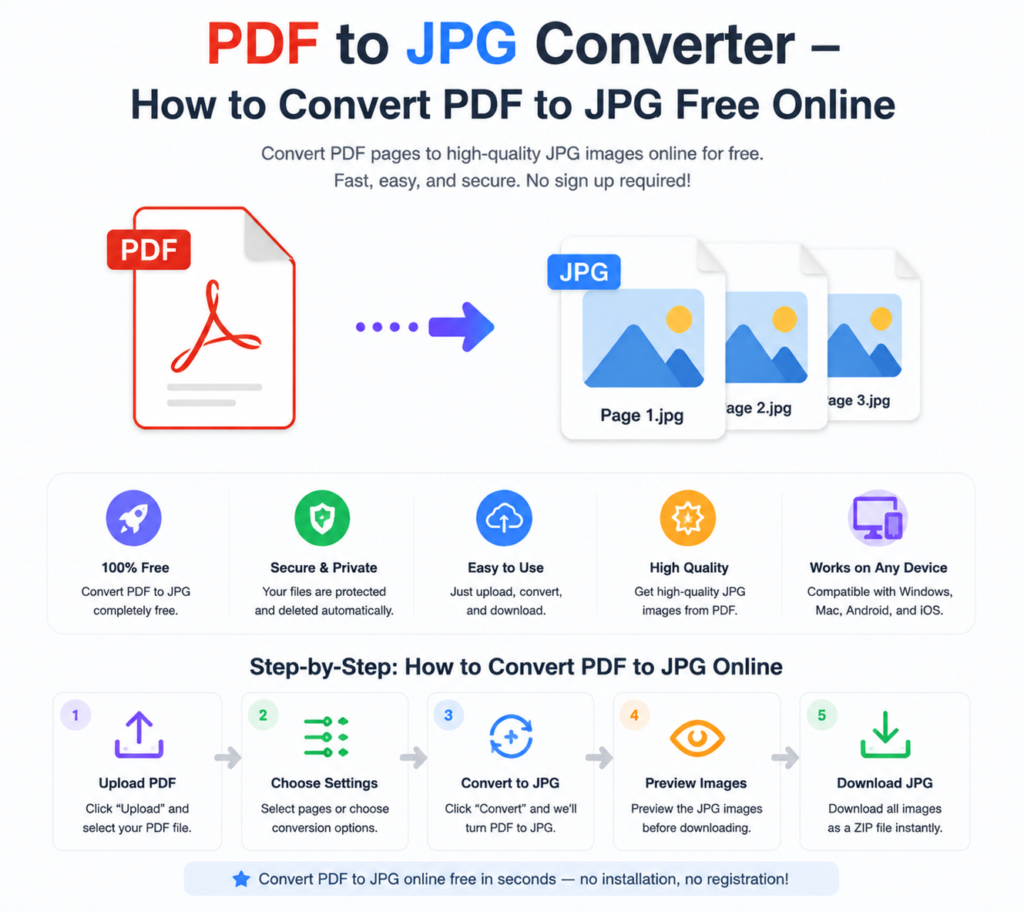
Using the free PDF to JPG converter at OneClickPDFConvert is straightforward. Here’s the exact process:
Step 1 — Open the PDF to JPG Tool
Go to oneclickpdfconvert.com and click on PDF to JPG. The tool opens instantly — no account, no signup required.
Step 2 — Upload Your PDF
Click the upload button or drag and drop your PDF file directly onto the converter. Single-page and multi-page PDFs are both supported.
Step 3 — Select Image Quality
Choose your preferred output quality — high, medium, or standard. For professional use, select high quality. For web use or quick sharing, standard quality keeps file sizes smaller.
Step 4 — Convert
Click Convert. The tool processes each page of your PDF and converts it into a separate JPG image. This usually takes 10 to 30 seconds.
Step 5 — Download Your JPG Files
Download individual JPG images or download all pages as a ZIP file in one click. Done — your PDF pages are now high-quality JPG images.
What Quality Are the JPG Images After Conversion?
This depends on two things — the quality setting you choose and the resolution of the original PDF.
At high quality settings, PDF to JPG conversion produces sharp, clear images suitable for printing and professional use. At standard quality, file sizes are smaller — ideal for web uploads and quick sharing.
One important point: conversion cannot add quality that wasn’t in the original PDF. A low-resolution source PDF will produce lower-resolution JPG images regardless of settings.
Convert PDF to JPG on iPhone
iPhone users can convert PDFs to JPG directly in Safari — no app download needed:
- Open oneclickpdfconvert.com in Safari
- Tap PDF to JPG Converter
- Upload your PDF from Files or iCloud Drive
- Convert and save the JPG images to your Photos app
The mobile version works just as well as desktop — same speed, same quality.
Convert PDF to JPG on Android
Android users follow the same process through Chrome or any other browser:
- Open oneclickpdfconvert.com in Chrome
- Select PDF to JPG
- Upload your PDF from internal storage or Google Drive
- Convert and download your JPG files
How to Convert Specific Pages of a PDF to JPG
Don’t need the entire PDF — just specific pages? Here’s the most efficient approach:
- First, use a PDF splitter to extract the pages you need as a separate PDF
- Then convert that smaller PDF to JPG
This saves time and gives you exactly the images you need without converting unnecessary pages.
PDF to JPG vs PDF to PNG — Which Is Better?
Both are popular image formats — but they work differently:
- JPG — Smaller file size, slight compression, best for photos and general use. Perfect for social media, websites, and email attachments.
- PNG — Larger file size, lossless quality, supports transparency. Better for graphics, logos, screenshots, and design work.
For most everyday PDF to image conversions — sharing, uploading, presenting — JPG is the right choice. For design work where sharp edges and transparency matter, PNG is better.
Can I Convert a Scanned PDF to JPG?
Yes — scanned PDFs convert to JPG just like regular PDFs. Since scanned PDFs are already image-based, the conversion is actually very straightforward. Each scanned page becomes a JPG image.
The quality of the resulting JPG depends on the scan resolution. A high-resolution scan (300 DPI or above) produces excellent JPG output. A low-resolution scan produces a lower quality image — but the conversion itself doesn’t reduce quality further.
How to Convert PDF to JPG on Windows Without Software
Windows doesn’t have a built-in PDF to JPG converter. Your options are:
- Online tool — Fastest and free. No installation needed.
- Adobe Acrobat — Powerful but expensive (subscription required)
- Print to image — Clunky workaround using the print dialog
The online tool wins for simplicity and cost. Open your browser, convert, done.
Batch Convert PDF to JPG — Multiple Pages at Once
When you upload a multi-page PDF to the PDF to JPG converter, every page is converted automatically. You get one JPG per page — all available for download individually or as a single ZIP file.
This is perfect for extracting all images from a product catalogue, converting a presentation into slides, or pulling individual pages from a report.
Is It Safe to Upload PDFs for Conversion?
Yes — OneClickPDFConvert processes files securely. Your uploaded PDF is used only for conversion and automatically deleted from the server afterwards. No one else can access your files.
For sensitive documents, always verify the privacy policy of any tool you use. Avoid uploading confidential legal or financial documents to tools you don’t trust.
Common Issues and Quick Fixes
JPG Images Look Blurry
Select “High Quality” in the conversion settings. If blurriness persists, the original PDF may be low resolution.
Only Some Pages Converted
Very large PDFs may time out. Split the PDF into smaller sections first, then convert each section.
JPG File Is Too Large
Choose “Standard Quality” instead of High Quality — this significantly reduces file size while maintaining acceptable visual quality for most uses.
Final Thoughts
Converting PDF to JPG is one of the most common document tasks — and one of the easiest when you use the right tool. Whether you’re extracting images for a presentation, sharing pages on social media, or pulling charts from a report, a good PDF to JPG converter gets it done in seconds.
No software installation. No complicated steps. Just upload, convert, download.
👉 Convert PDF to JPG free — try it now at OneClickPDFConvert
Frequently Asked Questions About PDF to JPG Conversion
Is the PDF to JPG converter free?
Yes — completely free. No account, no subscription, no hidden charges.
How many pages can I convert at once?
Multi-page PDFs are fully supported — every page converts to a separate JPG automatically.
Does conversion reduce JPG image quality?
Conversion preserves the original quality. Choose High Quality settings for the best results.
Can I convert PDF to JPG on my phone?
Yes — works on iPhone and Android directly in any mobile browser. No app download needed.
What is the difference between PDF to JPG and PDF to PNG?
JPG has smaller file sizes and is best for photos and general use. PNG is lossless and better for graphics and design work.
Can I convert a password-protected PDF to JPG?
Remove the password first using a PDF password remover, then convert to JPG.
How long does PDF to JPG conversion take?
Usually 10 to 30 seconds for most files. Larger PDFs may take slightly longer.
Are my uploaded files kept private?
Yes — files are automatically deleted from servers after conversion is complete.