
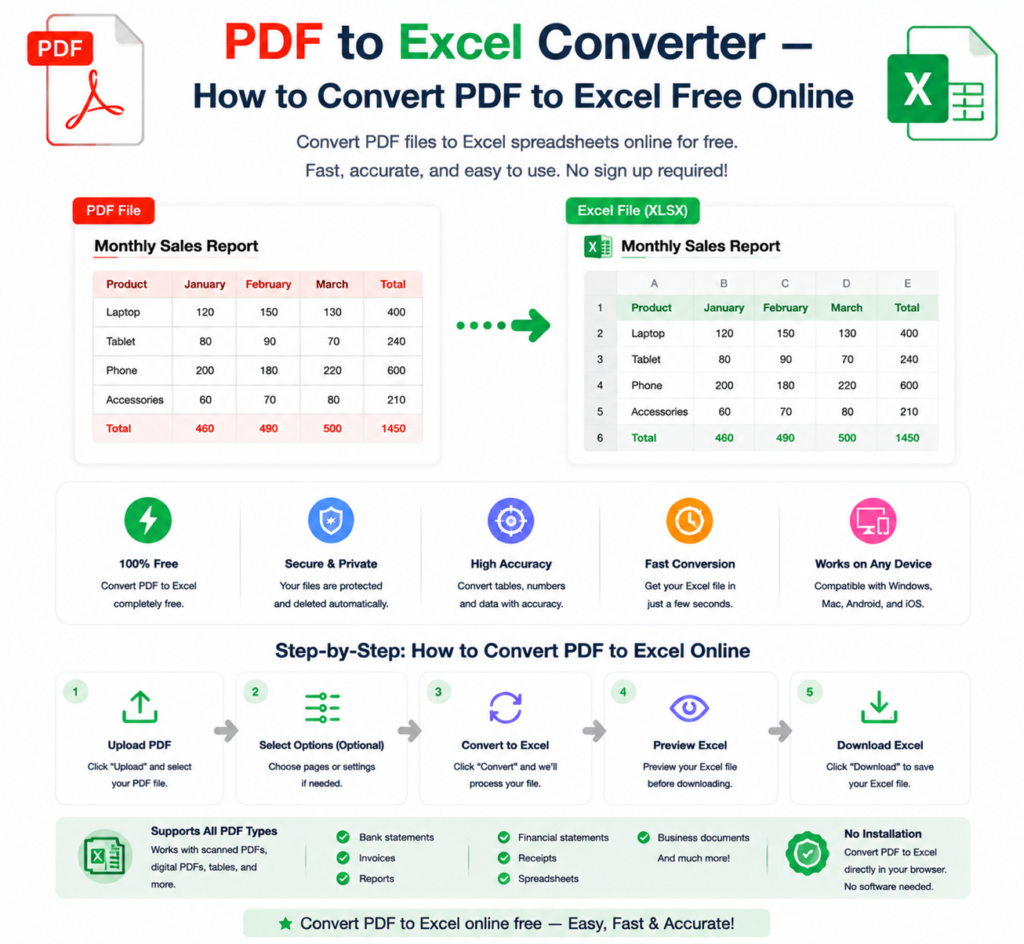
You’ve received a PDF with financial data, a pricing table, or a report full of numbers — and you need to work with that data in Excel. Copying it manually row by row is painful, error-prone, and takes forever. There’s a much better way.
Converting PDF to Excel online extracts tables and data from your PDF and delivers them as an editable spreadsheet — ready for analysis, calculation, and formatting. Here’s everything you need to know.
Why Convert PDF to Excel?
PDFs lock data in place — you can read it but you can’t easily work with it. Excel unlocks that data for real use:
- Data analysis — Run calculations, formulas, and pivot tables on extracted data
- Editing and updating — Modify figures, add rows, update prices without recreating the table
- Charts and visualisation — Turn PDF data into Excel charts instantly
- Import into databases — Use extracted data in accounting software, CRMs, or data tools
- Time saving — Extract hundreds of rows in seconds instead of typing manually
- Accuracy — Eliminate manual data entry errors that come from retyping figures
How to Convert PDF to Excel Online — Step by Step
Using the free PDF to Excel converter at OneClickPDFConvert is fast and straightforward:
Step 1 — Open the PDF to Excel Tool
Go to oneclickpdfconvert.com and select PDF to Excel from the tools menu. No account, no signup — ready immediately.
Step 2 — Upload Your PDF
Click to upload or drag and drop your PDF file. Both single-page and multi-page PDFs are supported. Files containing tables, financial data, or structured data work best.
Step 3 — Convert
Click Convert. The tool analyses your PDF, identifies table structures, and extracts the data into Excel format. This typically takes 10 to 30 seconds depending on file complexity.
Step 4 — Download Your Excel File
Download your .xlsx file. Open it in Excel or Google Sheets — your data is now fully editable, sortable, and ready for analysis.
What Types of PDF Data Convert Well to Excel?
Not all PDF content converts equally well. Here’s a realistic guide:
Converts Excellently
- Financial statements and balance sheets
- Price lists and product catalogues
- Bank statements with clear table structure
- Invoice data with consistent columns
- Survey results in tabular format
- Scientific data tables
Converts Reasonably Well
- Reports with mixed text and tables
- Government data publications
- Academic research tables
Requires Manual Cleanup
- Scanned PDFs (image-based — requires OCR processing)
- PDFs with complex merged cells
- Tables with inconsistent column alignment
- PDFs where data spans multiple pages with varying formats
Convert PDF Bank Statements to Excel
Bank statements are one of the most common PDF to Excel conversion tasks — for bookkeeping, tax preparation, and financial analysis. A good converter extracts:
- Transaction dates
- Transaction descriptions
- Debit and credit amounts
- Running balance figures
Once in Excel, you can sort transactions, filter by category, create pivot tables, and calculate totals instantly — tasks that are impossible with a PDF.
Convert PDF Invoice Data to Excel
Managing invoices from multiple suppliers? Converting PDF invoices to Excel lets you:
- Consolidate line items from multiple invoices into one sheet
- Calculate total spend per supplier
- Filter by date, amount, or category
- Import into accounting software like QuickBooks or Xero
PDF to Excel on iPhone and Android
Convert PDF data to Excel on any mobile device:
- Open oneclickpdfconvert.com on your phone browser
- Select PDF to Excel
- Upload your PDF from device storage or cloud drive
- Convert and download the Excel file
- Open in Excel mobile app or Google Sheets
PDF to Excel on Mac and Windows Without Software
Neither Mac nor Windows includes a built-in PDF to Excel converter. Adobe Acrobat handles it — at subscription cost. The free online alternative delivers comparable results for most documents:
- Open any browser
- Go to oneclickpdfconvert.com
- Upload, convert, download
No installation, no cost, done in under a minute.
How to Convert Scanned PDF to Excel
Scanned PDFs are image-based — the text and numbers appear visually but are not actual selectable data. Converting them to Excel requires OCR (Optical Character Recognition) to read the content first.
For scanned PDFs:
- Use a PDF OCR tool to make the scanned text selectable
- Then convert the OCR-processed PDF to Excel
OCR accuracy depends on scan quality. A sharp, high-resolution scan produces excellent Excel output. A blurry or low-contrast scan may need manual cleanup after conversion.
Tips for Better PDF to Excel Conversion Results
- Use digital PDFs when possible — PDFs created from Word, Excel, or accounting software convert far more accurately than scanned documents
- Check column alignment in the original — Well-structured tables with clear column headers produce cleaner Excel output
- Review the output carefully — Always check converted data for accuracy before using it for calculations or reports
- Clean up merged cells — Merged cells from PDFs sometimes need adjustment in Excel after conversion
- Format numbers after conversion — Currency symbols and number formats may need reapplying in Excel
PDF to Excel vs PDF to Word — Which to Choose?
- PDF to Excel — Choose when your PDF contains tables, numbers, financial data, or any structured data you need to work with
- PDF to Word — Choose when your PDF is mainly text-based content you need to edit or rewrite
For mixed documents with both text and data tables, convert to Word for the text sections and Excel for the data sections — then combine your work as needed.
What to Do With Your Excel File After Conversion
Once your PDF data is in Excel, the possibilities open up:
- Sort and filter — Organise data by date, amount, name, or any column
- Create formulas — Calculate totals, averages, percentages, and custom metrics
- Build pivot tables — Summarise large datasets in seconds
- Create charts — Visualise trends and patterns in your data
- Import to other tools — Upload to Google Sheets, accounting software, or databases
- Convert back to PDF — After editing, use the Excel to PDF converter to share a clean, formatted version
Common PDF to Excel Problems and Solutions
Numbers Appear as Text in Excel
This is common after conversion. Select the affected cells, go to Data → Text to Columns in Excel, and follow the wizard to convert text-formatted numbers to actual numeric values.
Columns Are Merged Incorrectly
Complex PDF table structures sometimes cause column misalignment. Use Excel’s merge/unmerge cell tools to correct the structure after conversion.
Data From Multiple Pages Is on One Sheet
This is normal — multi-page PDF tables typically land on one continuous Excel sheet. Use Excel’s freeze panes and filters to navigate large datasets comfortably.
Currency Symbols Are Missing
Reapply currency formatting in Excel by selecting the relevant cells and applying your preferred currency format from the Format Cells menu.
Final Thoughts
Converting PDF to Excel transforms locked, uneditable data into a living spreadsheet you can actually work with. Whether it’s bank statements, financial reports, pricing tables, or invoice data — the right PDF to Excel converter extracts it cleanly and saves hours of manual data entry.
No software. No cost. No typing rows of data by hand.
👉 Convert PDF to Excel free — try it now at OneClickPDFConvert
Frequently Asked Questions About PDF to Excel Conversion
Is the PDF to Excel converter free?
Yes — completely free. No account, no subscription, no hidden charges.
Will table formatting be preserved in Excel?
Column structure and data are preserved. Some formatting like colours and fonts may need reapplying in Excel after conversion.
Can I convert a scanned PDF to Excel?
Yes — but scanned PDFs require OCR processing first for accurate results. Digital PDFs convert more accurately.
Can I convert PDF to Excel on my phone?
Yes — works on iPhone and Android in any mobile browser. No app download needed.
What file format is the output?
The output is a standard .xlsx file compatible with Microsoft Excel, Google Sheets, and all major spreadsheet applications.
How accurate is the data extraction?
For well-structured digital PDFs, accuracy is very high. Scanned PDFs and complex layouts may require manual review and minor corrections.
Is my PDF data safe when uploaded?
Yes — files are processed securely and automatically deleted from servers after conversion.
Can I convert multiple PDFs to Excel at once?
Convert files one at a time for best accuracy. For large batches, convert each file and combine the sheets in Excel afterwards.