
You have a large PDF — a report, a book, a contract — and you only need one specific section. Or you need to send different chapters to different people. Or the file is simply too large to email and you need to break it into smaller pieces.
Splitting a PDF solves all of these problems instantly. This guide explains exactly how to split PDF pages online, free, without installing any software.
What Does Splitting a PDF Mean?
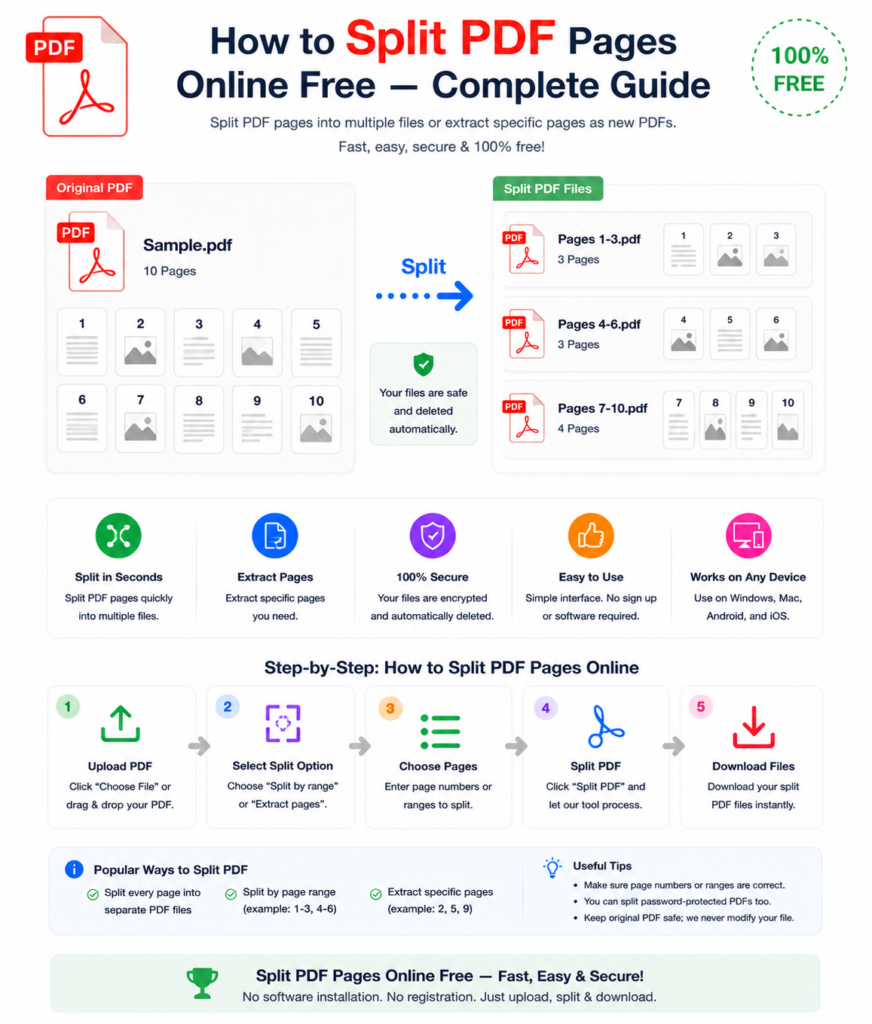
Splitting a PDF means dividing one PDF file into two or more separate files. You can split by:
- Extracting specific pages — Pull out pages 5, 8, and 12 as a separate PDF
- Splitting by page range — Pages 1-10 become one PDF, pages 11-20 become another
- Splitting every page — Each page becomes its own individual PDF file
- Splitting by file size — Divide until each part is under a specified size limit
How to Split a PDF Online — Step by Step
Using the free PDF split tool at OneClickPDFConvert is fast and simple:
Step 1 — Open the PDF Split Tool
Go to oneclickpdfconvert.com and select the PDF split tool. No account, no signup needed.
Step 2 — Upload Your PDF
Click to upload or drag and drop your PDF. The tool supports large multi-page PDFs.
Step 3 — Choose Split Method
Select how you want to split:
- Enter specific page numbers to extract
- Enter page ranges (e.g. 1-5, 6-10, 11-15)
- Split every page into individual files
Step 4 — Split and Download
Click Split. Download individual PDF files or all parts as a ZIP file.
When Should You Split a PDF?
- Email size limits — Break a large PDF into smaller parts that fit under email attachment limits
- Sharing specific sections — Send only the relevant chapter or section to each recipient
- Extracting pages — Pull out specific pages — a single form, one chart, one certificate
- Organising documents — Split a combined document back into its individual parts
- Before OCR or editing — Process large documents in smaller sections for faster results
- Upload size limits — Many portals have file size limits — split before uploading
Split PDF on iPhone and Android
Split PDF files directly from your mobile browser:
- Open oneclickpdfconvert.com on your phone
- Select the PDF split tool
- Upload your PDF from device storage or cloud drive
- Choose split method and download
Split PDF on Windows and Mac Without Software
Neither Windows nor Mac has a built-in PDF split tool. Adobe Acrobat handles it — at subscription cost. The free online alternative:
- Open any browser
- Go to oneclickpdfconvert.com
- Upload, split, download
No installation. No cost. Done in under a minute.
Extract Specific Pages From a PDF
Need just one page — a certificate, a form, a specific chart? Page extraction is the most precise split option:
- Upload your PDF
- Enter the specific page numbers you want (e.g. 3, 7, 15)
- Extract — only those pages are saved as a new PDF
This is perfect for extracting individual contracts from a combined document, pulling out specific report pages, or saving a single certificate from a multi-page PDF.
Split PDF by Page Range
Splitting by page range divides a PDF into defined sections:
- Pages 1-20 → Part 1
- Pages 21-40 → Part 2
- Pages 41-60 → Part 3
Useful for dividing annual reports into quarterly sections, splitting textbooks into chapters, or creating manageable sections from very large documents.
Split Every Page Into Individual PDFs
This option creates one PDF file per page. Useful for:
- Processing each page individually through another tool
- Sharing individual pages separately
- Converting a multi-page PDF into individual page images
- Separating combined invoices or certificates back into individual files
Split PDF vs Extract Pages — What Is the Difference?
- Split PDF — Divides the document into multiple files based on a rule (page range, file size, every N pages)
- Extract pages — Selects specific pages and saves them as a new PDF — the original remains intact
Both operations are available in a good PDF split tool — choose based on your specific need.
Does Splitting Reduce PDF Quality?
No — splitting a PDF does not affect quality at all. Each resulting file contains the original pages at full quality — text stays sharp, images stay clear, and formatting remains intact. Splitting simply divides the file — it does not reprocess or recompress the content.
How to Rejoin Split PDF Files
Split a PDF by mistake — or need to recombine parts? Use the PDF merge tool to rejoin split files into one document. Upload the parts in order and merge — the result is the original combined document.
Common PDF Splitting Problems and Solutions
Split Files Are Still Too Large
After splitting, use the PDF compressor on each part to reduce file size further.
Wrong Pages in the Split File
Always verify the page numbers in the original PDF before splitting — PDF page numbers sometimes differ from the printed page numbers inside the document.
Split Tool Won’t Process the File
Password-protected PDFs cannot be split without first removing the password. Use the PDF password remover first, then split.
Final Thoughts
Splitting a PDF is a simple but incredibly useful operation — whether you’re breaking a large file for email, extracting specific pages, or organising a combined document into separate parts. A good online PDF split tool handles it in seconds, with no quality loss and no software required.
Upload, split, download. Done.
👉 Split your PDF free — try it now at OneClickPDFConvert
Frequently Asked Questions About Splitting PDFs
Can I split a PDF online for free?
Yes — OneClickPDFConvert’s PDF split tool is completely free with no signup required.
Does splitting a PDF reduce quality?
No — splitting preserves full quality. Content is not reprocessed during splitting.
Can I extract specific pages from a PDF?
Yes — enter the specific page numbers you want and they are saved as a new PDF.
Can I split a PDF on my phone?
Yes — works on iPhone and Android in any mobile browser. No app download needed.
Can I split a password-protected PDF?
Remove the password first using the PDF password remover, then split the unlocked file.
How do I recombine split PDF files?
Use the PDF merge tool to rejoin split files in any order.
Is my PDF safe when uploaded for splitting?
Yes — files are processed securely and automatically deleted from servers after splitting.
What is the maximum file size for splitting?
Large files are supported. Check the tool page for current size limits.