
You saved an important PDF months ago — password protected for security. Now you need it urgently and the password is gone from your memory. Or maybe a colleague sent you a locked PDF and forgot to include the password. Either way, a password-protected PDF you can’t open is one of the most frustrating digital problems.
The good news? If you know the password — or if the PDF only has a permissions password — removing it is quick and free. This guide explains exactly how to remove password from PDF online in seconds.
Two Types of PDF Passwords — Know the Difference
Before removing a PDF password, it helps to understand what kind of protection you’re dealing with. PDFs can have two different types of passwords:
1. Open Password (User Password)
This locks the PDF entirely. You need the correct password just to open and view the file. Without it, the document is completely inaccessible. To remove this type of password, you must know the correct password first.
2. Permissions Password (Owner Password)
This allows the PDF to be opened and viewed — but restricts certain actions like printing, copying text, or editing. You may not even realise a permissions password exists until you try to print or copy something and find it blocked. This type of restriction can often be removed without knowing the original password.
How to Remove Password from PDF Online — Step by Step
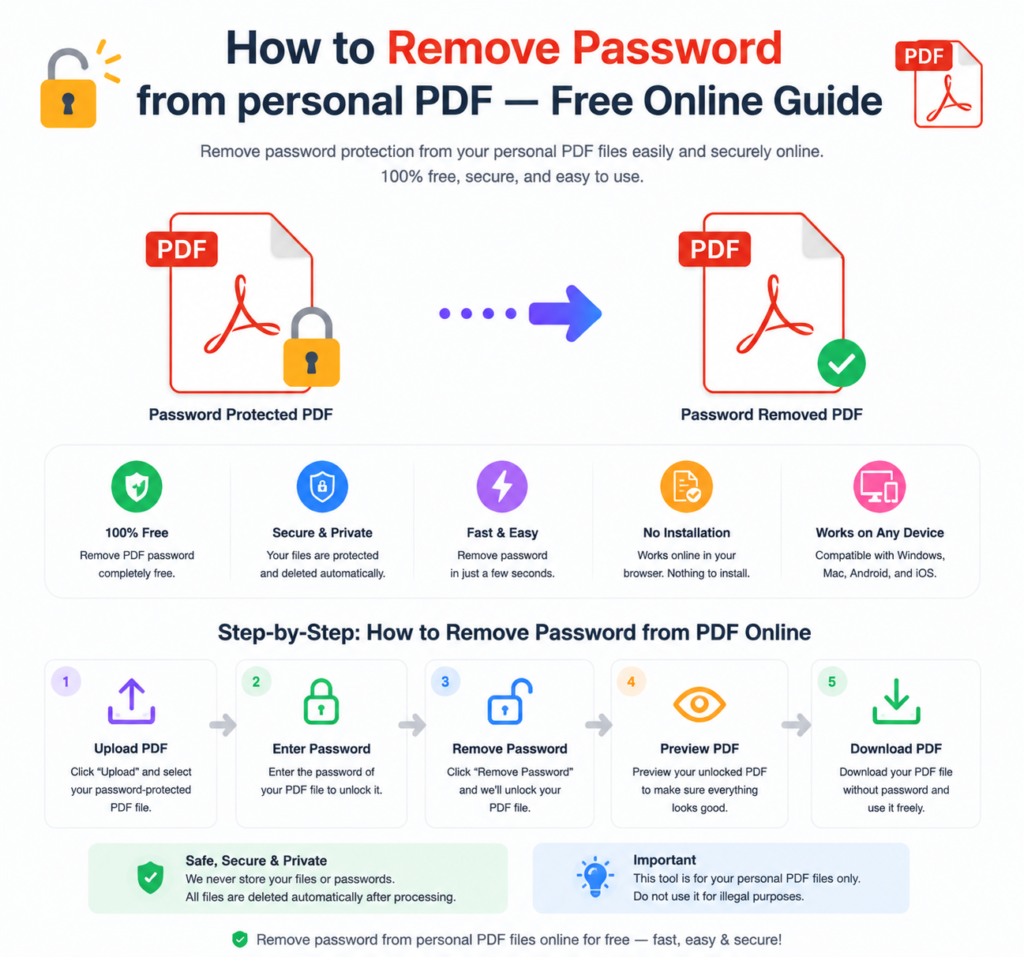
Using the free PDF password remover at OneClickPDFConvert takes under a minute:
Step 1 — Open the PDF Password Remover
Go to oneclickpdfconvert.com and select Remove PDF Password from the tools menu. No account needed — the tool is ready to use immediately.
Step 2 — Upload Your Password-Protected PDF
Click to upload or drag and drop your locked PDF file onto the tool. The file uploads to the secure converter.
Step 3 — Enter the Password
If your PDF has an open password, you’ll be prompted to enter it. Type the correct password — this verifies you have legitimate access to the document before the protection is removed.
Step 4 — Remove the Password
Click Remove Password. The tool processes your PDF and strips the password protection — usually within 5 to 15 seconds.
Step 5 — Download Your Unlocked PDF
Download the unlocked PDF. It opens freely now — no password required, no restrictions. You can edit, print, copy, and share without any limitations.
Can I Remove a PDF Password Without Knowing It?
This is the question everyone asks — and the honest answer has two parts.
For permissions passwords (printing/editing restrictions): Yes, in many cases these can be removed without knowing the original password. The tool handles this automatically.
For open passwords (full document lock): No legitimate tool can bypass this without the correct password. Anyone claiming otherwise is either misleading you or offering something illegal. If you genuinely cannot remember the password to your own document, your options are limited — try variations of passwords you commonly use, or check if you stored it somewhere like a password manager.
Is It Legal to Remove a PDF Password?
Yes — with an important condition. Removing password protection from a PDF you own or have legitimate access to is perfectly legal. It’s your document.
What is not legal is bypassing password protection on documents you don’t own or haven’t been given permission to access. Using a PDF password remover on your own files, or files shared with you by the owner, is completely fine.
Remove PDF Password on iPhone
No computer nearby? Remove PDF passwords directly on your iPhone:
- Open oneclickpdfconvert.com in Safari
- Tap Remove PDF Password
- Upload your locked PDF from Files or iCloud Drive
- Enter the password when prompted
- Download the unlocked PDF
The tool works perfectly on mobile — same speed and results as desktop.
Remove PDF Password on Android
- Open oneclickpdfconvert.com in Chrome
- Select Remove PDF Password
- Upload your PDF from device storage or Google Drive
- Enter the password and remove protection
- Download the unlocked file
Remove PDF Password on Windows Without Software
Windows has no built-in PDF password removal tool. Adobe Acrobat can do it — but it requires an expensive subscription. The free online alternative is faster and simpler:
- Open any browser on Windows
- Go to oneclickpdfconvert.com
- Upload, unlock, download
No installation. No cost. Done in under a minute.
How to Add a New Password After Removing the Old One
Removing a password doesn’t mean your PDF has to stay unprotected forever. After unlocking, you can:
- Add a new, memorable password you’ll actually remember
- Store the password in a password manager like LastPass or Bitwarden
- Re-protect only the copies you share externally, keeping an unlocked master copy for yourself
This is actually the smarter approach — keep an unlocked master and share protected copies when needed.
What to Do If You Cannot Remember the PDF Password
If the open password is genuinely gone from your memory, try these steps before giving up:
- Check your password manager — LastPass, 1Password, Bitwarden, browser saved passwords
- Search your email — If someone sent you the PDF, they may have sent the password in a separate email
- Try common variations — Birthdays, names, common passwords you use
- Check sticky notes or notebooks — Sounds obvious, but passwords written down are often forgotten and then found
- Contact the sender — If someone else created the PDF, ask them for the password
Why You Should Stop Using PDF Passwords for Everything
PDF passwords create a specific problem: they’re easy to forget and hard to recover. For truly sensitive documents, consider these alternatives:
- Encrypted cloud storage — Google Drive, Dropbox, and OneDrive offer folder-level encryption
- Password managers — Store passwords securely so you never lose them
- Secure file sharing — Services like WeTransfer Pro offer password-protected links that expire
These approaches are often more practical than PDF-level passwords — especially for documents you need to access regularly.
Common Issues When Removing PDF Passwords
Wrong Password Error
Double-check for typos. Passwords are case-sensitive — make sure Caps Lock is off. Try variations of the password you think it might be.
File Won’t Upload
Check your internet connection. Also confirm the file is actually a PDF — sometimes files saved with a .pdf extension are corrupted or in a different format.
PDF Still Shows as Restricted After Download
Close and reopen the downloaded file. Some PDF viewers cache the previous version — a fresh open should show the unlocked version correctly.
Final Thoughts
A locked PDF doesn’t have to stay locked. If you have the correct password, removing it takes under a minute using a free online tool. No software to install, no technical skills required.
Remove the password, work with your document freely, and next time — store the password somewhere you’ll actually find it.
👉 Remove PDF password free — try it now at OneClickPDFConvert
Frequently Asked Questions About Removing PDF Passwords
Can I remove a PDF password for free?
Yes — OneClickPDFConvert’s PDF password remover is completely free with no signup required.
Do I need to know the password to remove it?
For open passwords (document lock), yes — you must enter the correct password. For permissions passwords (printing/editing restrictions), these can often be removed without the original password.
Is removing a PDF password legal?
Yes — removing passwords from PDFs you own or have legitimate access to is perfectly legal.
Does removing a password affect the PDF content?
No — content, formatting, images, and layout remain exactly the same. Only the password protection is removed.
Can I remove a PDF password on my phone?
Yes — works on iPhone and Android in any mobile browser. No app download needed.
Is my document safe when uploaded for password removal?
Yes — files are processed securely and automatically deleted from servers after the password is removed.
What if I forgot the PDF password completely?
Try your password manager, search your email for the password, or try common variations. If none work, recovering a forgotten open password without the original is not possible through legitimate tools.