
You’ve got five separate PDF files — a cover letter, a resume, a portfolio, references, and certificates. The employer wants everything in one document. Sound familiar?
Merging PDF files used to require expensive software like Adobe Acrobat. Not anymore. Today you can merge PDF files online in under a minute — completely free, no software installation required.
This guide covers everything: how to do it, when to do it, and the best practices to get perfect results every time.
What Does Merging PDFs Mean?
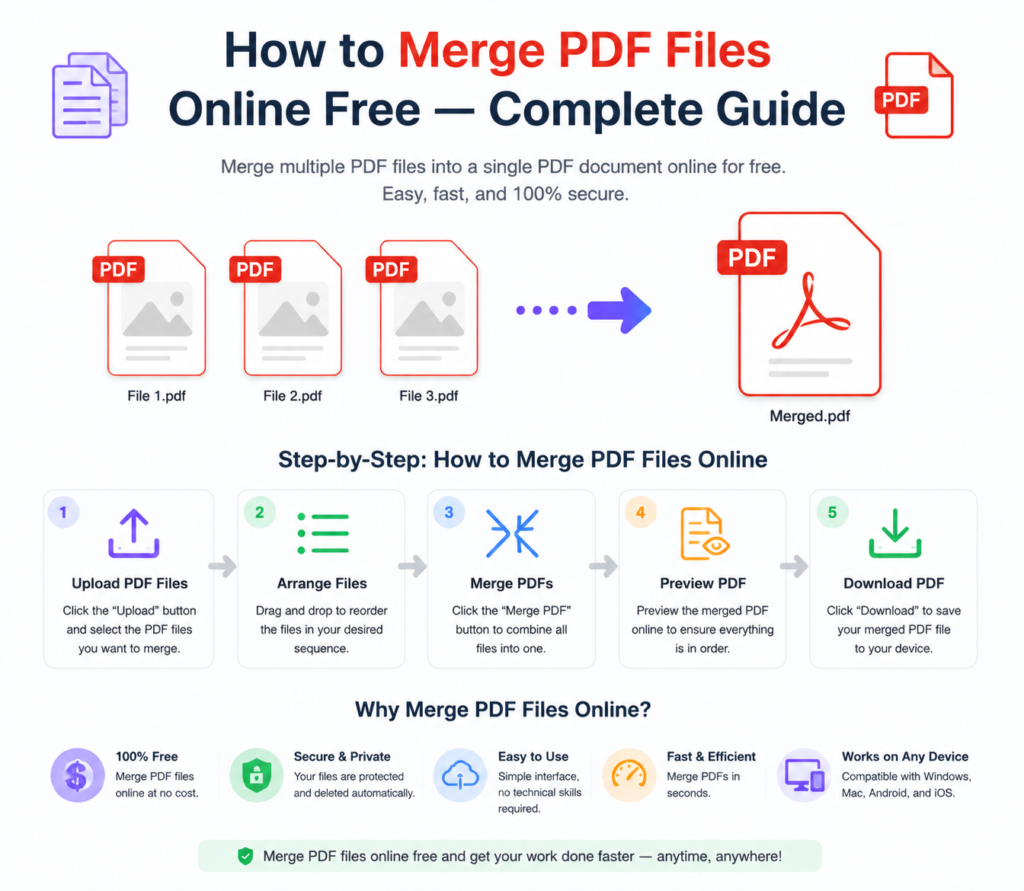
Merging PDFs simply means combining two or more separate PDF files into a single document. The pages from each file are joined together in the order you specify — creating one clean, unified PDF.
It’s one of the most common PDF tasks people need — and one of the easiest to do with the right tool.
How to Merge PDF Files Online — Step by Step
Here’s how to combine your PDFs using the free PDF merger at OneClickPDFConvert:
Step 1 — Open the PDF Merge Tool
Go to oneclickpdfconvert.com and select the PDF merge tool from the menu. No account needed — open and use instantly.
Step 2 — Upload Your PDF Files
Click to upload or drag and drop your PDF files onto the page. You can select multiple files at once — most merge tools support combining 2 to 20 files in a single session.
Step 3 — Arrange the Order
This step matters. Once uploaded, you can drag files into the exact order you want them to appear in the final document. Put your cover page first, main content in the middle, appendices at the end — whatever your situation requires.
Step 4 — Merge and Download
Click Merge. The tool combines all your PDFs into one file — this usually takes 10 to 30 seconds. Once done, click Download and save your merged PDF.
When Should You Merge PDF Files?
Merging PDFs is useful in more situations than most people realise:
- Job applications — Combine CV, cover letter, and certificates into one submission
- Legal documents — Merge contracts, exhibits, and amendments into a single file
- Academic submissions — Join research paper, references, and appendices
- Business reports — Combine monthly reports into a quarterly document
- Invoice management — Merge multiple invoices for a client into one PDF
- Photo collections — Combine image PDFs into a single album or catalogue
How to Arrange Pages When Merging PDFs
Page order is everything when merging documents. Here are some tips:
- Always put the cover page or introduction first
- Keep related sections together — don’t mix unrelated documents
- Add a table of contents page if the merged document is long
- Number your pages after merging using a PDF page numbering tool
Can I Merge Password-Protected PDFs?
Most PDF merge tools — including online ones — cannot merge password-protected PDFs directly. The protection blocks access to the file content.
The solution is simple: remove the password first using a PDF password remover, then merge the unlocked files. Once merged, you can re-add password protection if needed.
Merge PDF Files on iPhone and Android
No computer? No problem. The online PDF merger works on any mobile browser:
- Open oneclickpdfconvert.com on your phone browser
- Select the PDF merge tool
- Upload your files from your phone storage or cloud drive
- Arrange, merge, and download
The entire process works perfectly on iPhone Safari, Chrome for Android, and any other mobile browser.
How to Merge PDFs on Windows and Mac Without Software
Both Windows and Mac have limited built-in PDF merging capabilities. Mac’s Preview app can merge PDFs — but it’s clunky and confusing for many users. Windows has no built-in merge option at all.
The simplest solution for both platforms is an online tool. Open your browser, go to the merger, upload, combine, download. No software installation, no licensing fees, no complicated interface.
What Is the Maximum Number of PDFs I Can Merge?
This depends on the tool. Most free online PDF mergers support combining up to 20 files per session. For larger batches, you can merge in groups — merge 10 files, download, then merge that result with the next batch.
Will Merging PDFs Reduce Quality?
No — merging PDFs does not affect quality. The content of each file remains exactly as it was. Images stay sharp, text stays clear, formatting stays intact. You’re simply joining files together, not reprocessing them.
How to Split a PDF Instead of Merging
Sometimes you need the opposite — breaking one large PDF into smaller files. This is called PDF splitting. If you need to extract specific pages from a document or separate a large report into chapters, a PDF splitter handles this in seconds.
OneClickPDFConvert offers both merging and splitting tools — so whichever direction you need to go, you’re covered.
Tips for Better PDF Merging Results
- Compress large files first — If individual PDFs are very large, compress them before merging to keep the final file manageable. Use the PDF compressor first.
- Check page orientation — Make sure all files use the same orientation (portrait or landscape) before merging to avoid mixed pages
- Review before downloading — Preview the merged PDF before saving to confirm page order is correct
- Add page numbers after merging — Use a page numbering tool on the final merged document for professional results
Merge PDF vs Combine PDF — Is There a Difference?
People use both terms — “merge PDF” and “combine PDF” — and they mean exactly the same thing. Joining multiple PDF files into one document, in a specified order. Some tools label the feature differently, but the function is identical.
Is It Safe to Merge PDFs Online?
Yes — as long as you use a reputable tool. OneClickPDFConvert processes your files securely. Uploaded documents are used only for the conversion and are automatically removed from servers after the process is complete.
For highly confidential documents — legal contracts, financial records — always check the privacy policy of any tool you use before uploading.
Final Thoughts
Merging PDF files online is fast, free, and requires zero technical knowledge. Whether you’re combining a job application, organising business documents, or assembling a report — a good online PDF merger gets it done in under a minute.
No expensive software. No complicated steps. Just upload, arrange, merge, download.
👉 Merge your PDF files free — try it now at OneClickPDFConvert
Frequently Asked Questions About Merging PDF Files
Can I merge PDF files online for free?
Yes — OneClickPDFConvert’s PDF merge tool is completely free with no signup required.
How many PDF files can I merge at once?
You can merge multiple files in a single session. For very large batches, merge in groups.
Does merging PDFs reduce file quality?
No. Merging joins files without reprocessing content — quality remains identical to the originals.
Can I merge PDFs on my phone?
Yes — the tool works on any mobile browser, iPhone or Android, without any app download.
Can I change the page order when merging?
Yes — you can drag and arrange files into any order before merging.
Can I merge password-protected PDFs?
Not directly. Remove the password first, then merge the unlocked files.
How long does it take to merge PDFs online?
Usually 10 to 30 seconds depending on file sizes and number of documents.
Is my data safe when merging PDFs online?
Yes — files are processed securely and automatically deleted from servers after merging.