
PDFs were designed to be read, not edited. That’s the whole point — a document that looks identical on every device, impossible to accidentally change. But sometimes you genuinely need to make changes. A typo on a contract. An outdated address on a form. A name that needs updating on a certificate.
The good news is that you can edit PDF online free without expensive software like Adobe Acrobat. This guide covers everything — what you can edit, how to do it, and which approach works best for your situation.
What Can You Edit in a PDF?
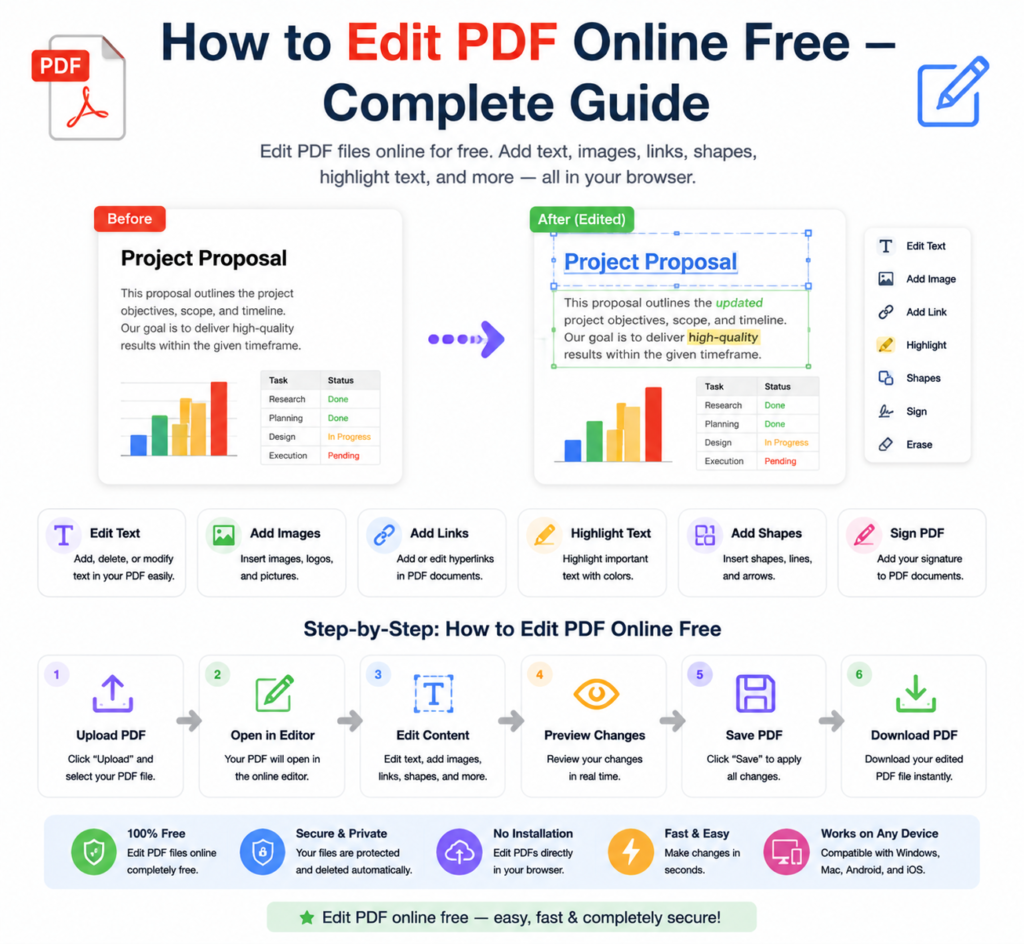
Before diving in, it’s worth knowing what’s actually editable in a PDF. Online tools handle these tasks well:
- Adding text — Insert new text boxes anywhere on the page
- Annotations and comments — Highlight, underline, strikethrough, add sticky notes
- Adding images — Insert logos, signatures, or photos
- Drawing and shapes — Add arrows, lines, rectangles for marking up documents
- Filling forms — Complete interactive PDF forms with text fields and checkboxes
- Adding signatures — Draw, type, or upload a signature image
- Whiteout / redaction — Cover text or images with white rectangles
- Page management — Rotate, delete, or rearrange pages
What online tools handle less reliably is directly modifying existing text that’s baked into the PDF — especially in scanned documents. For that, converting to Word first is often the better approach.
How to Edit a PDF Online — Step by Step
Using the free PDF editor at OneClickPDFConvert is simple and requires no software installation:
Step 1 — Open the PDF Editor
Go to oneclickpdfconvert.com and select the PDF editing tool. No account needed — open and start editing immediately.
Step 2 — Upload Your PDF
Click to upload or drag and drop your PDF file. The document loads in the online editor where you can see all pages clearly.
Step 3 — Make Your Edits
Use the editing toolbar to make changes:
- Select the Text tool to add new text anywhere on the page
- Use the Highlight tool to mark important sections
- Click the Signature tool to add your signature
- Use the Shape tool to draw arrows or boxes
- Select Whiteout to cover content you want to hide
Step 4 — Save and Download
Once your edits are complete, click Save or Download. Your edited PDF saves to your device with all changes applied permanently.
How to Edit Text in a PDF Online
Adding new text to a PDF is straightforward — click the text tool, click anywhere on the document, and type. You can adjust font size, colour, and style.
Modifying existing text is trickier. In a standard digital PDF, some advanced tools can select and edit existing text. In a scanned PDF, existing text is part of an image — it cannot be directly edited without OCR processing.
The most reliable approach for editing existing text in any PDF:
- Convert the PDF to Word using the PDF to Word converter
- Edit the text freely in Word
- Convert back to PDF when done
This two-step process works better than any direct PDF text editor for complex edits.
How to Fill in a PDF Form Online
PDF forms with interactive fields — the kind where you click a box and type — are easy to fill online:
- Upload the form to the PDF editor
- Click on each form field and type your information
- Check boxes and select radio buttons as needed
- Add your signature if required
- Download the completed form
This works perfectly for job applications, government forms, insurance documents, and any other fillable PDF.
How to Add a Signature to a PDF Online
Adding a signature to a PDF is one of the most common editing tasks — and one of the easiest online:
Option 1 — Draw Your Signature
Use your mouse or touchscreen to draw your signature directly in the editor. On a touchscreen device, this looks very natural.
Option 2 — Type Your Signature
Type your name and select a signature-style font. Quick and clean for most purposes.
Option 3 — Upload a Signature Image
Sign on white paper, photograph it, and upload the image. Position it where needed in the PDF.
How to Annotate a PDF Online
Annotating — adding notes, highlights, and markups — is perfect for reviewing documents, marking up reports, or leaving feedback:
- Highlight — Select text and apply yellow or coloured highlighting
- Underline — Draw attention to specific lines or phrases
- Strikethrough — Mark text for deletion without removing it
- Sticky notes — Add comment bubbles that appear when clicked
- Freehand drawing — Circle items, draw arrows, annotate diagrams
Annotations are ideal for academic papers, legal document review, and team collaboration on shared files.
Edit PDF on iPhone Without an App
iPhone users can edit PDFs directly in Safari — no app download needed:
- Open oneclickpdfconvert.com in Safari
- Select the PDF editor
- Upload your PDF from Files or iCloud Drive
- Use the touch interface to add text, signatures, or annotations
- Download the edited PDF
The touch interface works particularly well for drawing signatures and freehand annotations on iPhone.
Edit PDF on Android
- Open oneclickpdfconvert.com in Chrome
- Select the PDF editor tool
- Upload from device storage or Google Drive
- Make your edits using the toolbar
- Download the finished PDF
How to Redact Sensitive Information in a PDF
Redaction means permanently hiding sensitive content — names, addresses, account numbers, personal data. This is different from simply covering text with a white box that can be removed.
For permanent redaction:
- Use the Whiteout tool to cover the sensitive content
- Download the PDF
- Convert to image (JPG) and back to PDF — this permanently flattens the content so hidden text cannot be recovered
For legal or compliance purposes, always verify that redaction is truly permanent before sharing sensitive documents.
Edit PDF vs Convert to Word — When to Use Each
- Use the PDF editor when: You need to add a signature, fill a form, highlight content, add annotations, or make minor additions
- Convert to Word when: You need to rewrite paragraphs, change existing text extensively, reformat sections, or restructure the document
Both approaches have their place — knowing which to use saves time and frustration.
Common PDF Editing Problems and Solutions
Cannot Edit Existing Text
Convert to Word first, edit freely, then convert back to PDF. This is the most reliable method for text changes.
Text Box Appears in Wrong Font
When adding text, select a font that matches the document’s existing font as closely as possible for a seamless look.
Signature Looks Too Large or Small
After inserting a signature, drag the corner handles to resize it to fit the signature line naturally.
Edited PDF Is Very Large
After editing, compress the PDF using the PDF compressor to reduce file size before sharing.
Final Thoughts
Editing a PDF online doesn’t require expensive software or technical skills. For adding text, filling forms, inserting signatures, and annotating documents — a free online PDF editor handles it all quickly and cleanly.
For more extensive text changes, the PDF to Word route gives you maximum flexibility. Either way, you have a free solution available in your browser right now.
👉 Edit your PDF free — try it now at OneClickPDFConvert
Frequently Asked Questions About Editing PDFs Online
Can I edit a PDF online for free?
Yes — OneClickPDFConvert’s PDF editor is completely free with no signup required.
Can I change existing text in a PDF?
For best results, convert the PDF to Word, edit the text, then convert back. Direct text editing in PDFs works for simple cases but has limitations.
Can I add a signature to a PDF online?
Yes — draw, type, or upload a signature image and position it anywhere in the PDF.
Can I edit a scanned PDF?
Scanned PDFs are image-based — text cannot be directly edited. Convert to Word using OCR first, then edit, then convert back to PDF.
Can I edit a PDF on my phone?
Yes — works on iPhone and Android in any mobile browser. No app download needed.
Will editing change the PDF file size?
Adding images and annotations increases file size slightly. Use the PDF compressor after editing if you need a smaller file.
Is my PDF safe when uploaded for editing?
Yes — files are processed securely and automatically deleted from servers after your session.
Can I undo edits after downloading?
Once downloaded, edits are permanent in the PDF. Always keep a copy of the original before making changes.