
You open a PDF and it’s surrounded by massive white margins. Or there’s a watermark in the corner you need to cut out. Maybe a scanned document has uneven borders that make it look messy. Whatever the situation, cropping PDF pages fixes it — and you don’t need expensive software to do it.
This guide shows you exactly how to crop PDF pages online, free, without installing anything on your device.
What Does Cropping a PDF Mean?
Cropping a PDF means trimming the visible area of each page — removing content from the edges to focus on what matters. Think of it like cropping a photo, but for document pages.
What cropping can do:
- Remove excessive white margins around content
- Cut out unwanted borders from scanned documents
- Remove headers or footers you don’t want
- Trim watermarks from edges
- Focus on a specific section of a page
- Standardise page sizes across a multi-page document
One important thing to understand — cropping a PDF hides the trimmed content visually but doesn’t permanently delete it in all cases. For permanent removal, flattening the PDF after cropping is recommended.
How to Crop PDF Pages Online — Step by Step
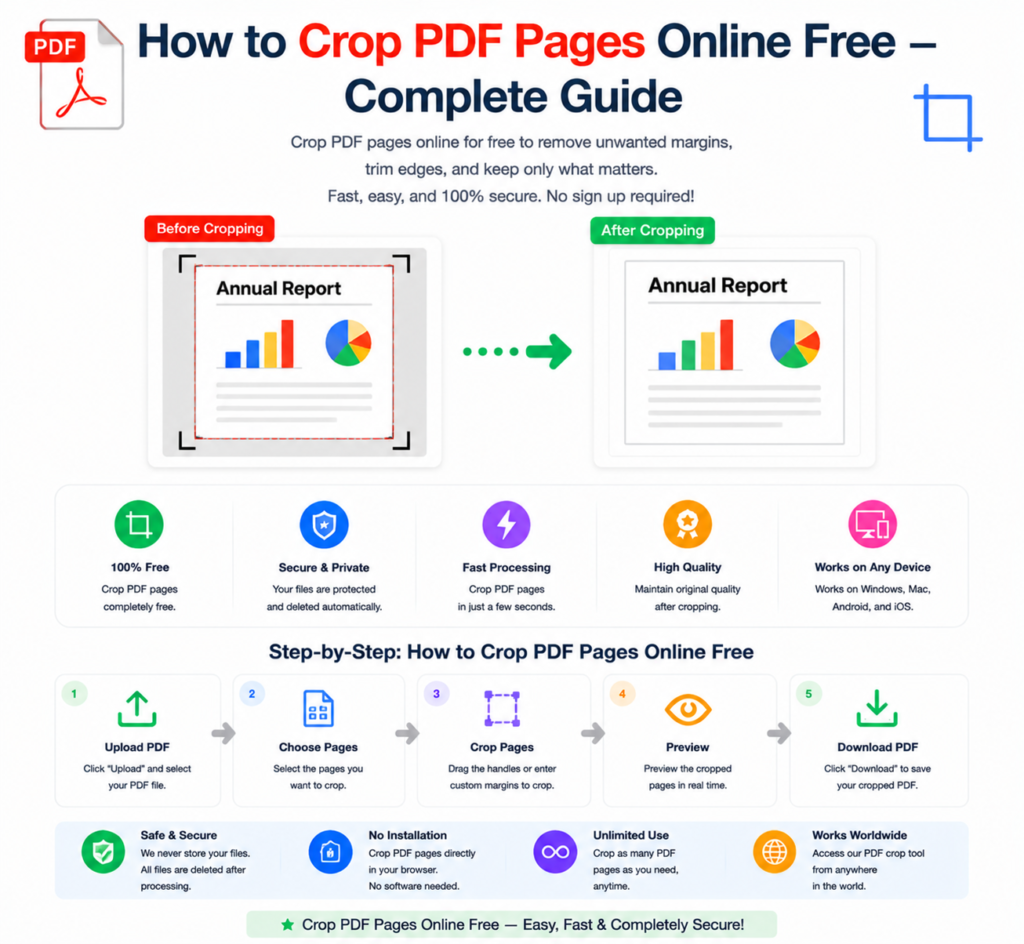
Using the free PDF crop tool at OneClickPDFConvert is simple and fast:
Step 1 — Open the PDF Crop Tool
Go to oneclickpdfconvert.com and select the PDF crop tool. No account needed — open and use immediately.
Step 2 — Upload Your PDF
Click to upload or drag and drop your PDF file. Single and multi-page PDFs are both supported.
Step 3 — Select the Crop Area
Use the crop handles to select exactly which area of the page to keep. Drag the edges inward to trim margins, or drag to a specific region of the page. Most tools show a live preview so you can see exactly what the cropped page will look like.
Step 4 — Apply to All Pages or Specific Pages
Choose whether to apply the same crop to all pages — useful for consistent margins — or crop individual pages differently. For scanned documents with uniform borders, applying to all pages saves significant time.
Step 5 — Download the Cropped PDF
Click Apply and Download. Your cropped PDF saves to your device — clean, trimmed, and ready to use.
Why Crop a PDF? Common Use Cases
Removing Excessive White Space
Scanned documents often have wide white borders around the actual content — leftover from the scanning process. Cropping brings the content to the edges of the page for a cleaner, more professional look.
Removing Unwanted Headers or Footers
Downloaded reports, academic papers, and official documents sometimes include headers or footers with information you don’t need. Cropping removes them cleanly.
Extracting a Specific Section
Need just one chart from a full-page report? Crop the page to show only that chart — then save or share the focused version.
Fixing Scanned Document Borders
When scanning physical documents, the edges of the paper often appear as dark or uneven borders. Cropping removes these for a much cleaner result.
Standardising Page Sizes
When combining PDFs from different sources, pages may have varying sizes and margins. Cropping standardises them before merging with the PDF merge tool.
Crop PDF on iPhone
Crop PDF pages directly from your iPhone — no app download needed:
- Open oneclickpdfconvert.com in Safari
- Select the PDF crop tool
- Upload your PDF from Files or iCloud Drive
- Use touch controls to set the crop area
- Download the cropped PDF
The touch interface works naturally for setting crop boundaries on iPhone and iPad.
Crop PDF on Android
- Open oneclickpdfconvert.com in Chrome
- Select the PDF crop tool
- Upload from device storage or Google Drive
- Set crop area and apply
- Download the finished PDF
Crop PDF on Windows Without Software
Windows has no built-in PDF cropping tool. Adobe Acrobat handles it — but requires an expensive subscription. The free online alternative is faster and simpler for most users:
- Open any browser on Windows
- Go to oneclickpdfconvert.com
- Upload, crop, download
No installation. No cost. Completed in under a minute.
Crop PDF on Mac
Mac’s Preview app has a basic PDF crop feature — but it’s limited and the results can be inconsistent. The online crop tool gives more precise control:
- Open oneclickpdfconvert.com in Safari or Chrome
- Upload your PDF
- Set precise crop boundaries
- Download the cleanly cropped result
Crop vs Trim vs Bleed — Understanding PDF Terminology
If you work with print documents, you may encounter these related terms:
- Crop — The visible area of the page as displayed on screen and printed
- Trim — The final size of the printed page after cutting
- Bleed — Extra content extending beyond the trim edge, used in professional printing to avoid white borders after cutting
- Media box — The total page size including all hidden content
For most everyday PDF cropping — removing margins, trimming scanned borders, focusing on content — you only need to think about the crop area. Professional print terms matter when preparing files for commercial printing.
How to Crop a PDF Without Losing Quality
Cropping a PDF does not reduce quality — unlike cropping a photo, which discards pixels. PDF cropping adjusts the visible area of the page without reprocessing the content. Text stays sharp, images stay clear, and vector graphics remain perfectly crisp at any zoom level.
The only exception is if you convert the PDF to an image format before or after cropping — that process involves rasterisation which can affect quality. Crop the PDF directly for best results.
Crop Multiple PDF Pages at Once
For multi-page PDFs, cropping page by page would be tedious. A good PDF crop tool lets you:
- Apply the same crop to all pages simultaneously
- Apply different crops to odd and even pages (useful for books with alternating margins)
- Select a range of pages to crop together
This batch cropping capability makes it practical to clean up long scanned documents in seconds.
After Cropping — What to Do Next
Once you’ve cropped your PDF, you might want to:
- Compress it — Use the PDF compressor to reduce file size before sharing
- Merge it — Combine with other PDFs using the PDF merge tool
- Convert it — Convert to Word, JPG, or another format as needed
- Add page numbers — Number the pages of your cleaned-up document
Common PDF Cropping Problems and Solutions
Crop Area Keeps Resetting
Make sure you confirm the crop selection before clicking Apply. Some tools require you to lock in the selection before processing.
Content Is Cut Off After Cropping
You’ve cropped too aggressively. Undo and set a slightly larger crop area — leave a small margin around your content to avoid accidentally cutting text or images.
Crop Didn’t Apply to All Pages
Check the settings — ensure “Apply to all pages” is selected before converting. Some tools default to applying only to the current page.
PDF Looks the Same After Cropping
Some PDF viewers ignore crop settings and show the full page. Download the cropped PDF and open it in a different viewer — Adobe Reader or your browser’s built-in PDF viewer — to see the correct result.
Final Thoughts
Cropping PDF pages is a straightforward task that makes a real difference to document presentation. Cleaning up scanned borders, removing unnecessary margins, focusing on key content — a good online PDF crop tool handles all of it in seconds.
No expensive software. No complicated steps. Just upload, crop, download.
👉 Crop your PDF pages free — try it now at OneClickPDFConvert
Frequently Asked Questions About Cropping PDF Pages
Can I crop PDF pages online for free?
Yes — OneClickPDFConvert’s PDF crop tool is completely free with no signup required.
Does cropping a PDF reduce quality?
No — cropping adjusts the visible area without reprocessing content. Text and images remain at full quality.
Can I crop all pages of a PDF at once?
Yes — apply the same crop to all pages simultaneously for consistent results across multi-page documents.
Can I crop a PDF on my phone?
Yes — works on iPhone and Android in any mobile browser. No app download needed.
Will cropped content be permanently removed?
Cropping hides content visually. For permanent removal, flatten the PDF after cropping by converting to image and back to PDF.
Can I undo a crop after downloading?
Once downloaded, the crop is applied. Always keep a copy of the original before cropping.
Is my PDF safe when uploaded for cropping?
Yes — files are processed securely and automatically deleted from servers after your session.