
Ever tried to edit a PDF and hit a wall? You click, you drag, nothing moves. That frustration is real — and honestly, it happens to everyone. The good news? Converting a PDF to a Word file takes about 30 seconds when you know the right tool.
In this guide, you’ll learn exactly how to convert PDF to Word online, free, without installing anything on your device.
Why Convert PDF to Word?
PDFs are great for sharing — they look the same on every device. But editing them? That’s where they fall apart. Word documents, on the other hand, are built for editing. So when you need to:
- Update a resume or CV
- Edit a contract or agreement
- Modify a report before sending
- Copy content from a scanned file
…converting PDF to Word is the fastest solution.
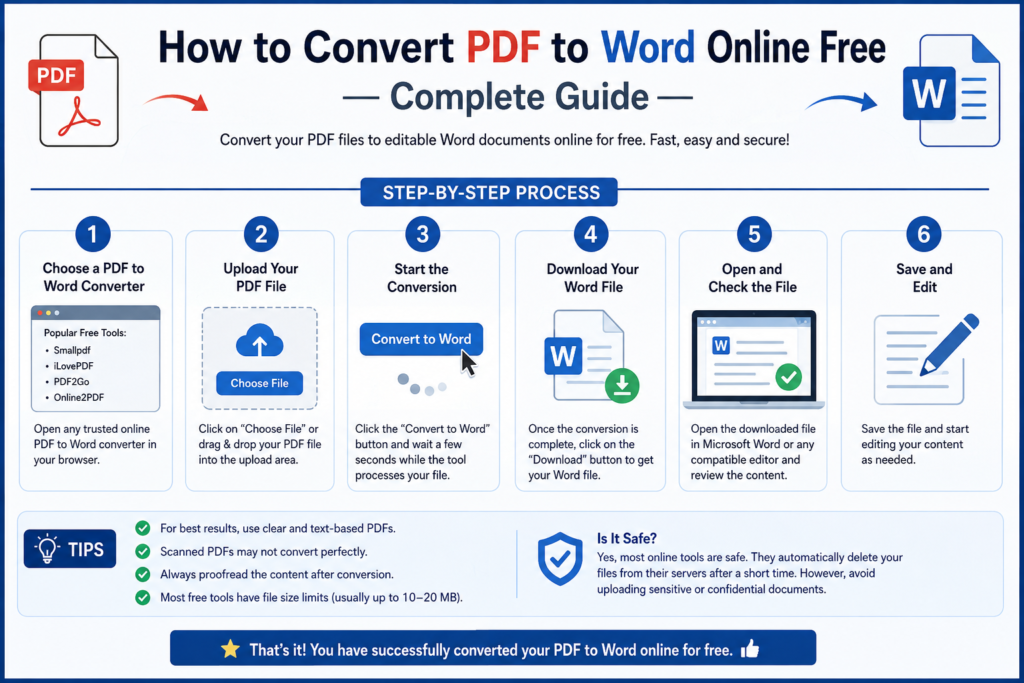
How to Convert PDF to Word Online — Step by Step
Using OneClickPDFConvert’s free PDF to Word converter is straightforward. Here’s exactly what to do:
Step 1 — Open the Tool
Go to oneclickpdfconvert.com and click on PDF to Word Converter. No signup required — the tool opens instantly.
Step 2 — Upload Your PDF
Click the upload button and select your PDF file. You can also drag and drop the file directly onto the page. Files up to 50MB are supported.
Step 3 — Convert
Hit the Convert button. The tool processes your file — this usually takes 5 to 15 seconds depending on file size.
Step 4 — Download Your Word File
Once done, your Word (.docx) file is ready to download. Click Download and it saves directly to your device.
Does the Formatting Stay Intact?
This is the question everyone asks — and rightly so. Here’s the honest answer: for most standard PDFs, yes, the formatting holds up well. Tables, headings, bullet points — they transfer cleanly.
Scanned PDFs are a different story. Since scanned files are essentially images, the converter uses OCR (Optical Character Recognition) to read the text. The accuracy depends on scan quality. A crisp, clear scan? Near-perfect results. A blurry photo of a document? You might need to clean it up manually.
Is It Safe to Upload My PDF?
A fair concern. With OneClickPDFConvert, your files are processed securely and not stored on servers after conversion. Sensitive documents — contracts, medical records, financial files — can be converted without worry.
PDF to Word on Mobile — Does It Work?
Yes. The tool works on any device with a browser — iPhone, Android, tablet, laptop. No app download needed. Just open the site, upload, convert, done.
Common Issues and Quick Fixes
Text Looks Scrambled After Conversion
This usually happens with PDFs that have unusual fonts or complex layouts. Try converting page by page if the full document causes issues.
Images Are Missing in the Word File
Some converters strip images during conversion. OneClickPDFConvert preserves images in most cases — but if yours are missing, check if the original PDF embeds images or links to them externally.
File Is Too Large to Upload
Compress your PDF first using the PDF Compressor tool, then convert it.
PDF to Word vs Other Formats — Which Should You Choose?
Not sure if Word is the right output? Here’s a quick breakdown:
- Word (.docx) — Best for editing, writing, formatting changes
- Excel (.xlsx) — Best for tables and data-heavy PDFs
- JPG/PNG — Best when you just need an image of the page
- PDF/A — Best for long-term archiving
For most editing needs, Word is the right call.
Final Thoughts
Converting PDF to Word doesn’t have to be complicated. With the right free online tool, it’s a matter of uploading, clicking convert, and downloading your editable file. No software, no cost, no hassle.
Try it now — convert your PDF to Word free at OneClickPDFConvert.
Frequently Asked Questions
Is PDF to Word conversion really free?
Yes — OneClickPDFConvert’s PDF to Word tool is completely free with no hidden charges.
Do I need to create an account?
No account needed. Just upload and convert directly.
What is the maximum file size?
Files up to 50MB can be uploaded for conversion.
Will my PDF formatting be preserved?
For most standard PDFs, yes. Complex layouts may need minor adjustments after conversion.
Can I convert multiple PDFs at once?
Currently the tool processes one file at a time for best accuracy.