
If you own an iPhone, you’ve almost certainly run into this problem. You take a photo, try to share it with someone on Windows, and they can’t open it. That’s because Apple saves photos in HEIC format — a file type that most non-Apple devices simply don’t support.
The fastest fix? Convert your HEIC to PDF. A PDF opens on literally every device — Windows, Android, Mac, Linux — without needing any special app. In this guide, you’ll learn exactly how to do it in under a minute, completely free.
What Is a HEIC File?
HEIC stands for High Efficiency Image Container. Apple introduced it with iOS 11 as a replacement for JPEG. The main advantage is file size — HEIC images are roughly half the size of equivalent JPEGs at the same quality. That’s great for storage. But it creates compatibility problems when sharing with non-Apple users.
Most Windows computers, Android phones, and older software simply can’t open HEIC files natively. Converting to PDF solves this immediately.
Why Convert HEIC to PDF?
There are several solid reasons to choose PDF as your output format:
- Universal compatibility — PDFs open on every device and operating system
- No quality loss — Your image stays sharp and clear inside the PDF
- Easy sharing — Email, WhatsApp, Google Drive — PDFs work everywhere
- Multiple images, one file — Combine several HEIC photos into a single PDF document
- Professional presentation — PDFs look clean and organised for business use
How to Convert HEIC to PDF Online — Step by Step
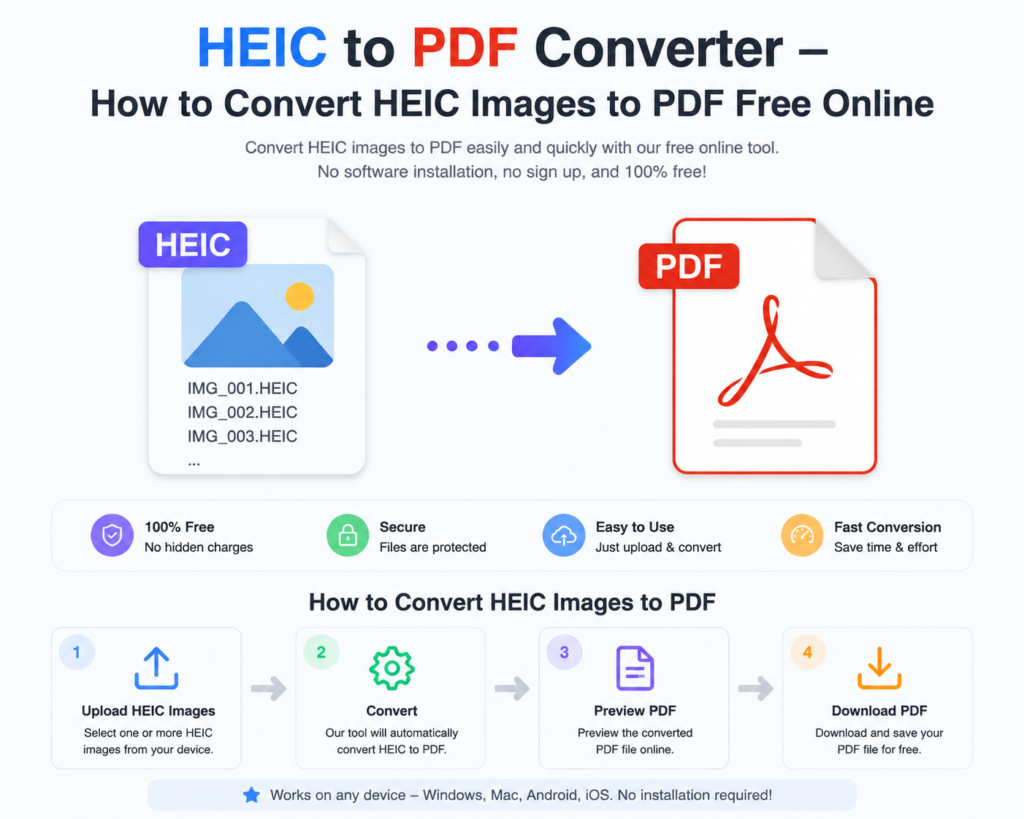
Using the free HEIC to PDF converter at OneClickPDFConvert takes less than a minute. Here’s the exact process:
Step 1 — Open the HEIC to PDF Converter
Visit oneclickpdfconvert.com and select the HEIC to PDF Converter tool. No account creation, no software download — just open and go.
Step 2 — Upload Your HEIC File
Click the upload area or drag and drop your HEIC image directly onto the page. You can upload a single photo or multiple HEIC files at once if you want to combine them into one PDF.
Step 3 — Convert
Click the Convert button. The tool processes your HEIC image and generates the PDF — this typically takes 5 to 20 seconds depending on file size.
Step 4 — Download Your PDF
Once conversion is complete, click Download. Your PDF saves directly to your device — ready to share, email, or print.
HEIC to PDF on iPhone — Can You Do It Without a Computer?
Absolutely. The HEIC to PDF converter works directly in your iPhone’s Safari or Chrome browser. No app download needed. Just:
- Open oneclickpdfconvert.com on your iPhone
- Tap HEIC to PDF Converter
- Upload your photo from your camera roll
- Convert and download
The whole process takes about 30 seconds on a phone.
HEIC to PDF on Windows
Windows 10 and 11 don’t support HEIC files natively without a paid codec from the Microsoft Store. Rather than spending money on a codec, just convert your HEIC to PDF — it’s faster and free.
Open any browser on your Windows PC, go to oneclickpdfconvert.com, upload your HEIC file, and download the PDF. Done — no codec required.
How to Convert Multiple HEIC Files to One PDF
Got a batch of iPhone photos you want in a single document? Here’s the quickest approach:
- Select all your HEIC files during upload
- The tool combines them into a single PDF — one image per page
- Download the combined PDF
This is especially useful for sharing photo albums, property inspection reports, event photos, or medical images as a single organised file.
HEIC to PDF vs HEIC to JPG — Which Should You Choose?
Both are valid options — but they serve different purposes:
- HEIC to PDF — Best for documents, sharing multiple images, professional use, printing
- HEIC to JPG — Best for social media, editing in photo software, general image sharing
If you’re sharing photos for a professional reason — a real estate listing, a product catalogue, medical records — PDF is the better choice. For casual sharing, JPG works fine.
OneClickPDFConvert offers both — check out the HEIC to PNG converter if you need the PNG format instead.
Is It Safe to Upload HEIC Photos Online?
Privacy matters — especially with personal photos. OneClickPDFConvert processes files securely and does not store uploaded images after conversion. Your photos are converted and then removed from the server automatically.
That said, for highly sensitive images — medical records, personal documents — it’s always sensible to use a trusted tool with a clear privacy policy.
Common HEIC to PDF Conversion Problems — And How to Fix Them
File Not Uploading
Check your internet connection. Also confirm the file is actually in HEIC format — sometimes iPhones save in JPEG depending on settings.
PDF Looks Blurry
This happens when the original HEIC file has low resolution. The converter doesn’t reduce quality — if the PDF looks blurry, the source image itself was low resolution.
Wrong Orientation in PDF
If your image appears rotated in the PDF, try rotating it on your phone before uploading, or use the PDF editing tool to correct orientation after conversion.
How to Stop iPhone From Saving in HEIC Format
If you want your iPhone to save photos as JPEG instead of HEIC going forward, here’s how:
- Open Settings on your iPhone
- Tap Camera
- Tap Formats
- Select Most Compatible instead of High Efficiency
Your camera will now save photos as JPEG — compatible with every device.
Final Thoughts
HEIC files are efficient — but their compatibility issues make them frustrating when sharing. Converting HEIC to PDF is the quickest, most universal solution. It takes under a minute, costs nothing, and works on any device.
Next time an iPhone photo won’t open on someone’s device, skip the frustration — convert it to PDF in seconds.
👉 Convert HEIC to PDF free — try it now at OneClickPDFConvert
Frequently Asked Questions About HEIC to PDF Conversion
Is the HEIC to PDF converter free?
Yes — completely free. No subscription, no signup, no hidden fees.
Do I need to install software to convert HEIC to PDF?
No. The converter works entirely in your browser — no downloads or installations needed.
Can I convert HEIC to PDF on Android?
Yes. Open oneclickpdfconvert.com on any Android browser, upload your HEIC file, and convert. It works perfectly on Android.
Will the image quality be preserved in the PDF?
Yes. The conversion preserves your original image quality — no compression or quality reduction occurs during conversion.
Can I convert multiple HEIC files into one PDF?
Yes — upload multiple HEIC images and the tool combines them into a single PDF document.
How long does HEIC to PDF conversion take?
Usually 5 to 20 seconds, depending on file size and internet speed.
Is my photo stored on the server after conversion?
No. Files are automatically deleted from the server after conversion is complete.