
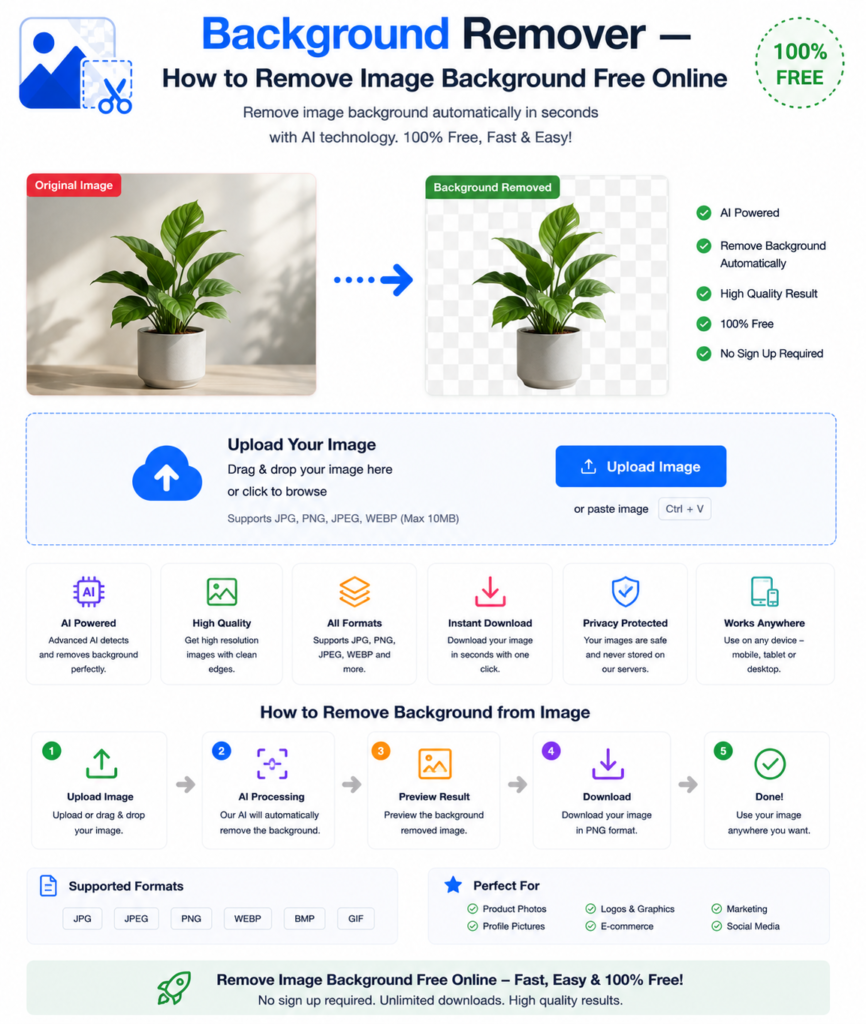
You have a great photo — a product shot, a profile picture, a logo — but the background is cluttered, distracting, or simply wrong for your purpose. Removing the background used to mean hours in Photoshop with careful, painstaking selection work. Not anymore.
Modern AI-powered background remover tools can detect and remove backgrounds automatically in seconds — producing clean, transparent PNG images ready for any use. This guide explains how to do it free, online, with no software required.
What Is a Background Remover?
A background remover is a tool that automatically detects the subject of an image — a person, product, animal, or object — and removes everything behind it. The result is an image with a transparent background, saved as a PNG file.
With the transparent background, you can:
- Place the subject on any new background colour or image
- Use the image on a website without a white box around it
- Layer it over other images in design software
- Print it on merchandise, packaging, or marketing materials
- Use it in presentations without an awkward background clash
Why Remove an Image Background?
Background removal is one of the most common image editing tasks — and it’s needed in more situations than most people realise:
- Product photography — E-commerce platforms like Amazon require product images on white or transparent backgrounds
- Profile photos — Professional headshots with transparent backgrounds work on any website or app
- Logo design — Logos need transparent backgrounds to work cleanly on any surface or colour
- Marketing materials — Brochures, flyers, and social media posts need subjects without background clutter
- Presentations — Images in PowerPoint and Keynote look far more professional without white backgrounds
- ID and passport photos — Official documents often require photos with specific plain backgrounds
- Video thumbnails — YouTube and social media thumbnails often use cutout images layered over bold backgrounds
How to Remove Image Background Online — Step by Step
Using the free background remover at OneClickPDFConvert takes under 30 seconds:
Step 1 — Open the Background Remover
Go to oneclickpdfconvert.com and select BG Remover from the tools menu. No account, no signup — ready instantly.
Step 2 — Upload Your Image
Click to upload or drag and drop your image. JPG, PNG, and WebP formats are supported. The tool works best with images where the subject is clearly distinct from the background.
Step 3 — AI Removes the Background
The AI engine automatically detects your subject and removes the background — this typically takes 5 to 15 seconds depending on image complexity.
Step 4 — Download Your Transparent PNG
Download your image as a PNG file with a transparent background — ready to use anywhere.
What Types of Images Work Best?
AI background removal works exceptionally well on some image types and less well on others. Here’s a realistic guide:
Works Excellently
- People and portrait photos with clear separation from background
- Product photos on plain or simple backgrounds
- Animals with clear outlines
- Logos and graphics with defined edges
- Cars and vehicles
Works Reasonably Well
- People with complex hair (curls, flyaways) — AI handles hair better than ever but complex cases may need minor touch-up
- Products on patterned backgrounds
- Objects with semi-transparent elements
More Challenging
- Images where subject and background colours are very similar
- Complex scenes with multiple overlapping subjects
- Images with very low resolution or heavy compression
- Glass and transparent objects — edges can be difficult to detect accurately
Remove Background on iPhone
iPhone users can remove backgrounds directly in Safari — no app download needed:
- Open oneclickpdfconvert.com in Safari
- Tap BG Remover
- Upload your photo from your camera roll
- Download the transparent PNG to your Files app
Note: iPhones running iOS 16 or later also have a built-in background removal feature — press and hold on any photo in the Photos app to activate it. For more complex images or batch processing, the online tool gives more control.
Remove Background on Android
- Open oneclickpdfconvert.com in Chrome
- Select BG Remover
- Upload your image from gallery or Google Drive
- Download your transparent PNG
Remove Background for E-Commerce Product Photos
Product background removal is one of the highest-volume uses of this technology. Online stores — Amazon, Etsy, Shopify, eBay — require or strongly recommend product images on clean white or transparent backgrounds.
The workflow for e-commerce sellers:
- Photograph the product against any background
- Upload to the background remover
- Download the transparent PNG
- Place on a pure white background for marketplace listings
- Use the transparent version for website product pages
This approach is far faster and cheaper than hiring a professional photo editor for every product image.
Remove Background for Professional Profile Photos
A professional headshot with a transparent background is incredibly versatile:
- Place on a white background for LinkedIn
- Place on a branded colour background for a company website
- Use on any background for different platforms without reshooting
Take one good photo, remove the background, and you have a version that works everywhere.
What Format Is the Output — PNG or JPG?
Background-removed images are always saved as PNG — not JPG. Here’s why:
- PNG supports transparency — JPG does not. Transparent areas in a JPG would appear as white.
- PNG is lossless — No quality reduction, important for images you’ll use in multiple contexts
- PNG preserves edges — Sharp, clean edges around the subject without JPG compression artefacts
Always save your background-removed images as PNG to preserve the transparency.
What to Do After Removing the Background
Add a White Background
For marketplace listings and formal use, open the transparent PNG in any image editor and place it on a white canvas.
Add a Coloured Background
Place the transparent PNG over any solid colour background for branded social media graphics, presentations, or marketing materials.
Add a New Photo Background
Layer the transparent PNG over a different photo in design tools like Canva, Photoshop, or even Google Slides for creative compositing.
Use Directly in Design Tools
Import the transparent PNG into Canva, Adobe Express, PowerPoint, or any design tool — it will sit cleanly on whatever background you place it on.
Tips for Better Background Removal Results
- Use high resolution images — Higher resolution gives the AI more detail to work with for accurate edge detection
- Ensure good contrast — Subject and background should be visually distinct for cleanest results
- Good lighting — Well-lit subjects with defined shadows produce better results than flat or overexposed images
- Plain backgrounds help — Simple backgrounds (white, grey, blue) produce the cleanest automatic removal
- Check edges carefully — Zoom into the edges of the subject in the downloaded PNG to check for any remaining background pixels or missing subject pixels
Common Background Remover Problems and Solutions
Parts of the Subject Are Removed
This happens when subject and background colours are very similar. Try photographing the subject against a contrasting background colour before removing it.
Background Remnants Around the Edges
Very complex edges — fine hair, fur, foliage — sometimes leave small background remnants. Use a photo editor to clean these up manually after the automatic removal.
Transparent Areas Inside the Subject
Transparent or reflective subjects like glass, water, or mirrors confuse background removal AI. These require manual editing for clean results.
Output Image Is Too Small
Some free tools reduce image resolution. Use the highest quality source image available and check the output dimensions before use.
Final Thoughts
Background removal used to be a skilled, time-consuming task reserved for professional photo editors. Today, AI-powered tools do it automatically in seconds — free, online, with no software required.
Whether you’re preparing e-commerce product photos, creating professional profile images, designing marketing materials, or simply cleaning up a photo for personal use — a good background remover gets it done fast.
👉 Remove image background free — try it now at OneClickPDFConvert
Frequently Asked Questions About Background Removal
Is the background remover free?
Yes — completely free. No account, no subscription, no hidden charges.
What image formats are supported?
JPG, PNG, and WebP images are supported for upload.
What format is the output?
Output is always PNG — the only format that supports transparent backgrounds.
Can I remove backgrounds on my phone?
Yes — works on iPhone and Android in any mobile browser. No app download needed.
How accurate is the background removal?
Very accurate for most standard images — people, products, animals on reasonably contrasting backgrounds. Complex cases like fine hair or transparent objects may need minor touch-up.
Can I use the tool for commercial purposes?
Yes — images processed through the tool can be used for commercial purposes including e-commerce, marketing, and business use.
Is my image safe when uploaded?
Yes — files are processed securely and automatically deleted from servers after conversion.
Why is my output saved as PNG and not JPG?
PNG is the only common format that supports transparent backgrounds. JPG does not support transparency — transparent areas would appear as white in a JPG file.