
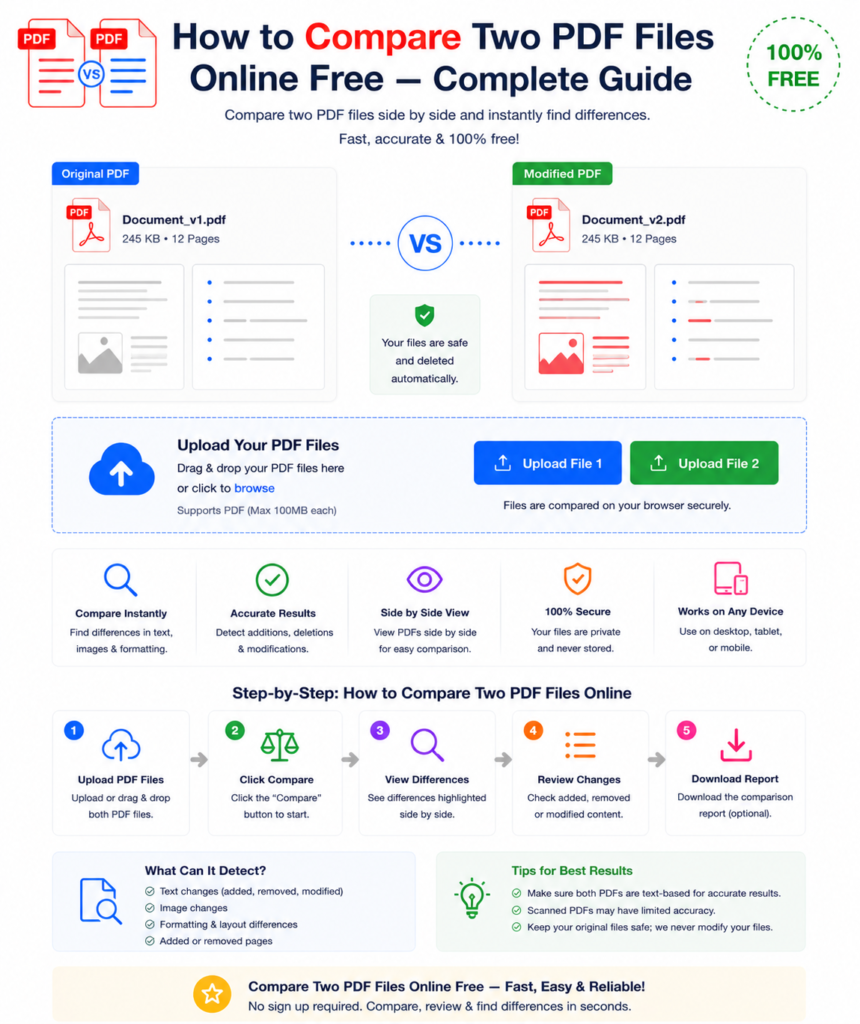
You have two versions of the same PDF document — an original and a revised version. Both look nearly identical. But somewhere in those pages, something changed. Maybe a clause was modified in a contract. A figure was uPDF Compare Online Free – Complete Guide to Compare Two PDF Files Easily
Introduction
When you have two versions of the same document, even a small change can be difficult to find manually. Whether it is a contract, report, academic paper, or business proposal, checking differences line by line is time-consuming and risky. This is where PDF compare tools become extremely useful.
A pdf compare tool allows you to upload two PDF files and instantly detect all changes between them. It highlights modified text, added content, deleted sections, and even formatting differences. Instead of spending hours reviewing documents manually, you can get accurate results in seconds.
In this guide, you will learn everything about how pdf compare online tools work, why they are important, and how you can use them for free without installing any software.
What is PDF Compare?
PDF compare is the process of analyzing two PDF documents to identify differences between them. These differences may include:
- Added or removed text
- Modified sentences or paragraphs
- Formatting changes
- Image updates
- Page rearrangements
A pdf compare tool scans both files and generates a comparison report that clearly highlights every change.
This is especially useful when documents go through multiple revisions and you need to ensure nothing important has been altered.
Why PDF Compare is Important
Using a pdf compare tool is essential in many professional fields. Here are the main reasons:
1. Contract Verification
Before signing any agreement, you must ensure no hidden changes exist in the revised version. PDF compare helps detect even the smallest modification.
2. Business Reports
Companies frequently update financial reports. PDF compare ensures accuracy between old and new versions.
3. Academic Work
Students and researchers use pdf compare to track changes between drafts and final submissions.
4. Legal Documents
Lawyers rely on pdf compare tools to verify clauses, terms, and conditions.
5. Quality Assurance
Editors and proofreaders use pdf compare to ensure no unwanted changes were introduced during editing.
How to PDF Compare Files Online (Step-by-Step)
Using an online pdf compare tool is very simple. You do not need any installation or technical knowledge.
Step 1: Open PDF Compare Tool
Visit any free online pdf compare website (for example, OneClickPDFConvert or similar tools).
Step 2: Upload First PDF
Upload the original or older version of your document.
Step 3: Upload Second PDF
Upload the updated or revised version of the same document.
Step 4: Click Compare
Start the comparison process. The tool will analyze both files automatically.
Step 5: View Results
The tool will highlight all differences such as:
- Added text (highlighted in one color)
- Deleted text (marked differently)
- Modified content (clearly shown side-by-side)
Step 6: Download Report (Optional)
You can download the comparison report for record keeping or sharing.
What Changes Can PDF Compare Detect?
A modern pdf compare tool can detect multiple types of differences:
Text Differences
- New sentences added
- Removed paragraphs
- Changed words or numbers
Formatting Differences
- Font style changes
- Size or alignment changes
- Spacing differences
Structural Differences
- Added or removed pages
- Page reordering
Visual Differences
- Images replaced or removed
- Graphs or tables updated
Best Use Cases of PDF Compare
1. Contract Review
Always compare final contract versions before approval. Even a single word change can affect legal meaning.
2. Financial Documents
Ensure numbers, percentages, and financial data remain consistent across versions.
3. Academic Research
Track updates between research drafts and published papers.
4. Content Editing
Writers and editors use pdf compare to check what changes were made during proofreading.
PDF Compare Online vs Manual Checking
| Method | Speed | Accuracy | Effort |
|---|---|---|---|
| Manual Checking | Slow | Low | High |
| PDF Compare Tool | Fast | High | Low |
Manual comparison is not reliable for long documents. A pdf compare tool ensures 100% accuracy and saves time.
Tips for Better PDF Compare Results
To get the best results from any pdf compare tool, follow these tips:
1. Use Editable PDFs
Text-based PDFs work better than scanned images.
2. Run OCR if Needed
If your PDF is scanned, convert it to editable text using OCR before comparison.
3. Remove Extra Elements
Delete comments or annotations before comparing files.
4. Compare Similar Versions
Always compare documents with similar structure for clearer results.
5. Check Page-by-Page
Even though tools highlight differences, always review results carefully.
Common Problems in PDF Compare and Solutions
Problem 1: No Differences Found
This usually happens with scanned PDFs. Solution: run OCR first.
Problem 2: Too Many Formatting Changes
Use text-only comparison mode if available.
Problem 3: Large File Slow Processing
Split large PDFs into smaller sections before comparison.
Problem 4: Password-Protected PDFs
Remove password protection before uploading files.
Advantages of Using PDF Compare Tools
Using an online pdf compare tool offers many benefits:
- No software installation required
- Works on all devices (PC, mobile, tablet)
- Fast and accurate results
- Free to use
- Easy for beginners
- Saves hours of manual work
Who Should Use PDF Compare?
PDF compare is useful for:
- Lawyers
- Business professionals
- Students
- Researchers
- Editors and writers
- Freelancers
- Corporate teams
Anyone who works with documents regularly can benefit from pdf compare tools.
Conclusion
In today’s fast-paced digital world, manually checking documents is no longer practical. A pdf compare tool allows you to instantly detect every change between two versions of a document with high accuracy.
Whether you are reviewing contracts, academic papers, business reports, or legal files, pdf compare helps you save time, avoid errors, and ensure document accuracy.
Instead of reading line by line, simply upload both files and let the tool do the work for you.