
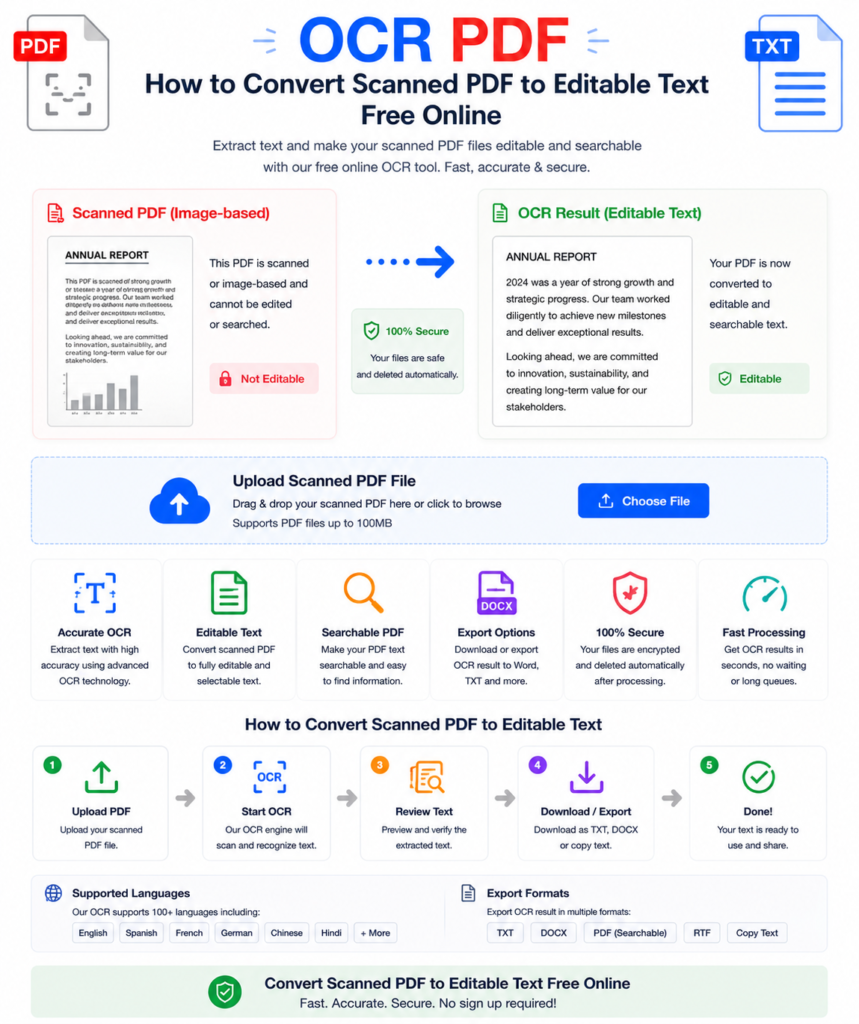
You’ve scanned an important document — a contract, a form, an old report — and saved it as a PDF. But when you try to select text, nothing happens. You can see the words on screen, but you can’t copy them, edit them, or search through them. That’s because a scanned PDF is essentially a photograph of a document — not actual text.
This is where OCR PDF technology comes in. OCR — Optical Character Recognition — reads the text in your scanned image and converts it into real, selectable, editable text. This guide explains exactly how it works and how to use it free online.
What Is OCR and How Does It Work?
OCR stands for Optical Character Recognition. It’s a technology that analyses images of text — whether scanned documents, photos of pages, or image-based PDFs — and identifies the individual characters, words, and sentences.
The process works in several stages:
- Image analysis — The OCR engine examines the uploaded image or PDF page
- Character recognition — It identifies individual letters, numbers, and symbols by comparing shapes to known character patterns
- Word and sentence assembly — Recognised characters are assembled into words, lines, and paragraphs
- Output generation — The recognised text is embedded into a new PDF as selectable, searchable, editable content
Modern OCR technology is remarkably accurate — achieving 95-99% accuracy on clean, high-quality scans.
Why Use OCR on a PDF?
Converting a scanned PDF to searchable, editable text opens up enormous possibilities:
- Edit the content — Modify text directly instead of retyping the entire document
- Search inside the document — Use Ctrl+F to find specific words or phrases instantly
- Copy and paste text — Extract quotes, data, or information without manual retyping
- Accessibility — Screen readers can read OCR-processed PDFs, making them accessible to visually impaired users
- Data extraction — Extract tables and data from scanned documents for use in Excel or databases
- Archiving — Searchable PDFs are far more useful for long-term document archives
- Smaller file size — Text-based PDFs are smaller than image-based scanned PDFs
How to Use OCR on a PDF Online — Step by Step
Using the free OCR PDF tool at OneClickPDFConvert is straightforward:
Step 1 — Open the OCR PDF Tool
Go to oneclickpdfconvert.com and select OCR PDF from the tools menu. No account, no signup — ready immediately.
Step 2 — Upload Your Scanned PDF
Click to upload or drag and drop your scanned PDF file. The tool accepts standard PDF files — both single-page and multi-page documents.
Step 3 — Select Language
Choose the language of the text in your document. Selecting the correct language significantly improves OCR accuracy — especially for languages with special characters or non-Latin scripts.
Step 4 — Run OCR
Click Convert or Run OCR. The tool processes each page, recognises the text, and embeds it into the PDF. Processing time depends on the number of pages and image quality — typically 10 to 60 seconds.
Step 5 — Download Your Searchable PDF
Download the OCR-processed PDF. Open it — you can now select text, copy it, search through it, and edit it freely.
What Affects OCR Accuracy?
OCR accuracy varies depending on several factors. Understanding these helps you get the best results:
Scan Quality — Most Important Factor
A sharp, high-resolution scan (300 DPI or above) produces excellent OCR results. A blurry, low-contrast, or low-resolution scan will have lower accuracy. Always scan at 300 DPI minimum for documents you plan to OCR.
Text Clarity
Clean, printed text in standard fonts gives near-perfect results. Handwritten text, decorative fonts, and heavily stylised text are harder for OCR engines to read accurately.
Page Orientation
Text scanned at an angle reduces OCR accuracy. Most OCR tools include automatic deskewing — straightening slightly tilted scans — but severely rotated pages should be corrected before uploading.
Background Noise
Documents with heavy watermarks, stamps, handwritten annotations over typed text, or dark backgrounds can confuse the OCR engine. Clean, plain backgrounds produce the best results.
Language Selection
Selecting the correct language for your document significantly improves accuracy. Most OCR tools support dozens of languages including English, Arabic, French, Spanish, German, Chinese, and many more.
OCR PDF vs Converting Scanned PDF to Word
Two common approaches for making scanned documents editable:
- OCR PDF — Keeps the document as a PDF but makes the text selectable and searchable. Layout and formatting are preserved. Best when you want to keep the PDF format.
- Convert to Word — Extracts content and places it in a Word document for full editing. Best when you need to rewrite or restructure the content extensively.
For most purposes — searching, copying, minor edits — OCR PDF is the faster and cleaner solution. For major rewrites, converting to Word gives more flexibility.
Common Uses for OCR PDF Technology
Legal and Contract Documents
Old contracts and legal documents scanned from paper become fully searchable after OCR. Find specific clauses, dates, or names instantly instead of reading through every page manually.
Academic Papers and Research
Scanned journal articles, book chapters, and research papers become fully quotable and citable after OCR — no manual retyping of quotes needed.
Business Records and Invoices
Scanned invoices, receipts, and financial records become searchable and data-extractable after OCR — making accounting and bookkeeping significantly faster.
Government and Official Documents
Birth certificates, property records, and official forms scanned from paper become text-searchable and processable after OCR.
Book and Magazine Digitisation
Physical books and magazines scanned to PDF become fully readable, searchable, and quotable after OCR processing.
Medical Records
Scanned medical records, prescriptions, and test results become searchable and data-extractable after OCR — making record management far more efficient.
OCR on iPhone and Android
Process scanned PDFs directly from your mobile device:
- Open oneclickpdfconvert.com on your mobile browser
- Select OCR PDF
- Upload your scanned PDF from device storage or cloud drive
- Select document language
- Run OCR and download the searchable PDF
Tips for Better OCR Results
- Scan at 300 DPI minimum — This is the single most impactful setting for OCR accuracy
- Use black and white mode for text documents — Colour scans of text documents are larger and sometimes less accurate than greyscale or black and white
- Keep pages straight — Scan documents as flat and straight as possible
- Clean the scanner glass — Dust and smudges on the scanner create noise in the image that reduces OCR accuracy
- Select the correct language — Always specify the document language before running OCR
- Review the output — Always check OCR results for errors before using the text in important documents
After OCR — What to Do Next
Once your PDF is OCR-processed and searchable, you might want to:
- Convert to Word — Use the PDF to Word converter for full editing capabilities
- Compress the file — Use the PDF compressor to reduce file size
- Extract data to Excel — Use the PDF to Excel converter to extract tables and data
- Merge with other documents — Combine with other PDFs using the merge tool
Common OCR PDF Problems and Solutions
OCR Output Has Many Errors
The source scan quality is too low. Rescan at 300 DPI or higher. Ensure good lighting and a flat, straight page when scanning.
Numbers and Special Characters Are Wrong
OCR engines sometimes confuse similar-looking characters — 0 and O, 1 and l, 5 and S. Always review numbers and special characters carefully in OCR output before using in important documents.
Foreign Language Characters Are Missing
Ensure you selected the correct language before running OCR. Re-run with the correct language selection for better results.
Processing Takes Too Long
Large PDFs with many pages take longer to process. For very large documents, split into smaller sections using the PDF split tool, OCR each section, then merge the results.
Final Thoughts
OCR technology transforms locked, unsearchable scanned documents into fully functional, searchable, editable PDFs. Whether you’re processing old contracts, digitising research papers, extracting data from invoices, or simply making a scanned form usable — a good OCR PDF tool handles it quickly and accurately.
No expensive software. No manual retyping. Just upload, process, download.
👉 Convert scanned PDF to searchable text free — try OCR PDF at OneClickPDFConvert
Frequently Asked Questions About OCR PDF
What does OCR mean?
OCR stands for Optical Character Recognition — technology that reads text from images and scanned documents and converts it into selectable, editable digital text.
Is the OCR PDF tool free?
Yes — completely free. No account, no subscription, no hidden charges.
How accurate is OCR?
Modern OCR achieves 95-99% accuracy on clean, high-resolution scans. Accuracy decreases with poor scan quality, unusual fonts, or handwritten text.
Can I OCR a multi-page PDF?
Yes — multi-page PDFs are fully supported. Every page is processed and the output is a single searchable PDF.
Can I use OCR on my phone?
Yes — works on iPhone and Android in any mobile browser. No app download needed.
What languages does OCR support?
Most major world languages are supported including English, Arabic, French, Spanish, German, Chinese, Japanese, and many more.
Can OCR read handwritten text?
OCR works best on printed text. Handwritten text can be partially recognised but accuracy is significantly lower than for printed documents.
Is my scanned document safe when uploaded?
Yes — files are processed securely and automatically deleted from servers after conversion.