
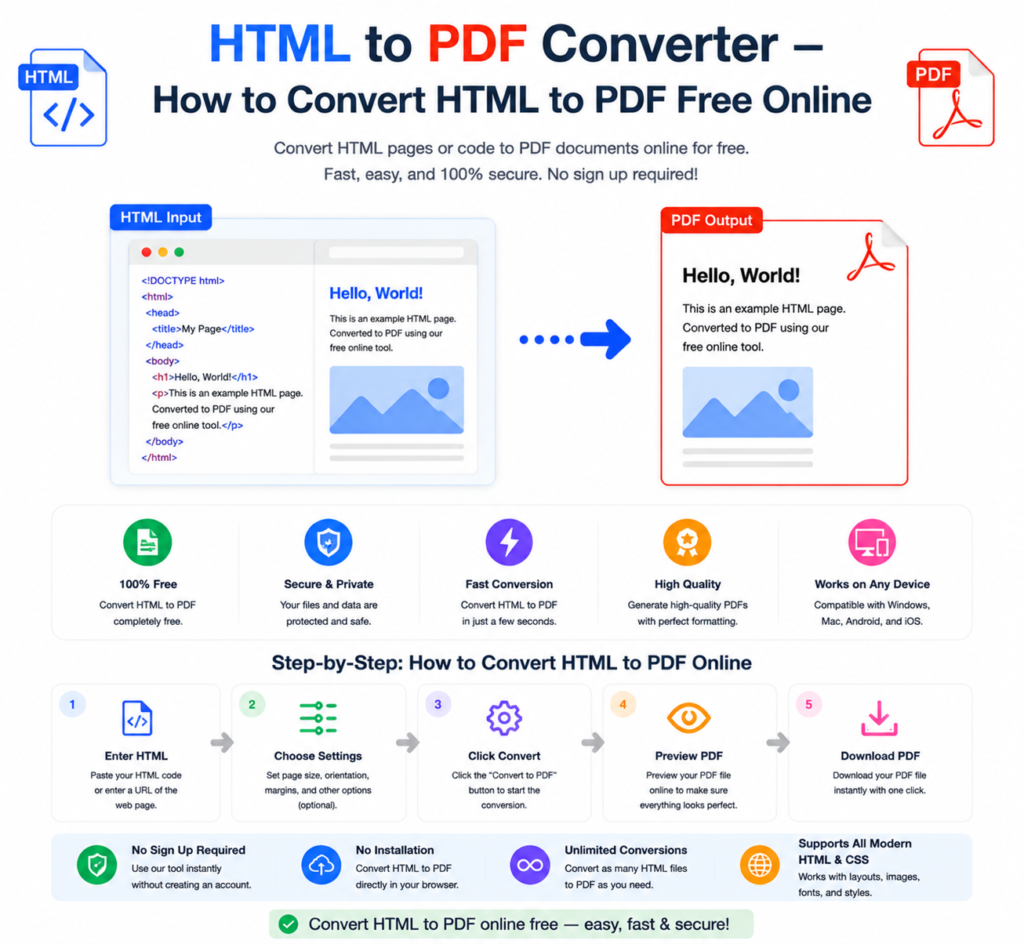
You’ve built a webpage, an invoice template, or an email newsletter in HTML. Now you need it as a PDF — for sharing, printing, or archiving. The problem? Copying and pasting HTML content into a PDF editor loses all formatting. Screenshots look unprofessional. And most people don’t have tools that handle HTML to PDF conversion properly.
The good news is that converting HTML to PDF online is fast, free, and preserves your layout exactly — CSS styling, images, fonts, and all. Here’s everything you need to know.
What Is HTML to PDF Conversion?
HTML to PDF conversion takes a webpage or HTML file and renders it as a PDF document — exactly as it would appear in a browser. This includes:
- CSS styling — colours, fonts, layouts, margins
- Images and graphics embedded in the page
- Tables and structured data
- Links (preserved as clickable links in the PDF)
- Headers and footers
The result is a PDF that looks identical to the original webpage — not a plain text dump, but a properly formatted document.
Why Convert HTML to PDF?
There are many practical reasons to convert HTML content to PDF:
- Invoices and receipts — HTML invoice templates convert to professional PDF invoices instantly
- Web page archiving — Save a webpage as PDF to preserve it exactly as it appeared
- Reports and documentation — Convert HTML reports to shareable PDF documents
- Email newsletters — Save HTML emails as PDF for records or sharing
- Legal records — Convert webpage content to PDF for evidence or documentation purposes
- Offline reading — Save articles and web content as PDFs to read without internet
- Print-ready documents — Convert HTML layouts to print-optimised PDFs
How to Convert HTML to PDF Online — Step by Step
Using the free HTML to PDF converter at OneClickPDFConvert is straightforward:
Step 1 — Open the HTML to PDF Tool
Go to oneclickpdfconvert.com and select HTML to PDF from the tools menu. No account or signup needed.
Step 2 — Upload Your HTML File or Enter a URL
You have two options:
- Upload an HTML file — Click upload and select your .html file from your device
- Enter a URL — Paste the web address of any public webpage to convert it directly
Step 3 — Configure Settings
Choose your page size (A4 or Letter), orientation (portrait or landscape), and margin settings. For most web content, A4 portrait with standard margins works perfectly.
Step 4 — Convert and Download
Click Convert. The tool renders your HTML exactly as a browser would and generates the PDF. Download your finished document — fully formatted and ready to share.
Convert a Webpage URL to PDF
Want to save any webpage as a PDF? Just paste the URL into the converter. This works for:
- News articles you want to save for later
- Product pages for price comparison records
- Wikipedia articles for offline reference
- Online receipts and order confirmations
- Any public webpage you need as a permanent document
The converter loads the page and captures it exactly as it appears — including images, styling, and layout.
Convert HTML Invoice Templates to PDF
This is one of the most popular uses of HTML to PDF conversion. Many businesses build invoice templates in HTML because HTML offers precise layout control. Converting to PDF for delivery is the natural next step.
The conversion preserves:
- Company logo and branding colours
- Table layouts for line items and totals
- Custom fonts and typography
- Footer information and payment terms
The result is a professional PDF invoice that looks exactly like your HTML template — ready to send to clients.
HTML to PDF on Mac
Mac’s built-in Print → Save as PDF option works for basic webpages but often struggles with complex CSS layouts. The online converter handles modern CSS far more reliably:
- Open oneclickpdfconvert.com in any browser
- Select HTML to PDF
- Upload your HTML file or paste a URL
- Convert and download
HTML to PDF on Windows
Windows has no built-in HTML to PDF tool. The browser’s Print → Save as PDF works for simple pages but loses styling on complex layouts. The online converter is the better solution:
- Open any browser on Windows
- Go to oneclickpdfconvert.com
- Upload HTML or enter URL
- Convert and download your perfectly formatted PDF
HTML to PDF on iPhone and Android
Mobile browsers have limited PDF export options. The online converter fills this gap perfectly:
- Open oneclickpdfconvert.com on your mobile browser
- Select HTML to PDF
- Upload an HTML file from your device or paste a URL
- Convert and download your PDF
This is particularly useful for saving mobile webpages as PDFs — receipts, confirmations, and articles you want to keep.
HTML to PDF for Developers
Developers often need to generate PDFs programmatically — from invoices to reports to certificates. While the online tool is perfect for one-off conversions, developers building automated PDF generation into applications typically use libraries like:
- wkhtmltopdf — Open source HTML to PDF conversion tool
- Puppeteer — Node.js library that uses headless Chrome for PDF generation
- WeasyPrint — Python library for HTML/CSS to PDF conversion
- jsPDF — JavaScript library for client-side PDF generation
For quick one-time conversions and non-technical users, the online tool is the fastest solution. For automated bulk generation, these libraries integrate into code directly.
Common Issues With HTML to PDF Conversion
CSS Styles Not Appearing in PDF
This usually happens when CSS is loaded from external stylesheets that the converter cannot access. For best results, use inline CSS or ensure all stylesheets are linked correctly and publicly accessible.
Images Missing in the PDF
Images loaded from external URLs need to be publicly accessible for the converter to include them. Locally hosted images (using relative paths like ./images/logo.png) may not load — use absolute URLs or embed images as base64 in the HTML.
Fonts Look Different in the PDF
Custom web fonts (Google Fonts, Adobe Fonts) need an internet connection to load during conversion. Ensure font links are included in your HTML head section and the fonts are publicly accessible.
Content Is Cut Off at Page Breaks
Add CSS page break rules to control where content breaks between PDF pages:
page-break-before: always; — Forces a page break before an elementpage-break-inside: avoid; — Prevents elements from being split across pages
PDF Is Too Wide or Content Overflows
Set a fixed width in your HTML (typically 800px for A4) and avoid percentage-based widths that depend on viewport size. This ensures consistent rendering regardless of screen size.
Best Practices for HTML Files Before Converting to PDF
- Use A4-compatible dimensions (794px width for screen, 210mm for print)
- Set print-specific CSS using
@media printrules - Embed images as base64 to avoid broken image issues
- Use web-safe fonts or embed font files directly
- Test in a browser at the target page size before converting
- Add proper margins in CSS to avoid content touching page edges
HTML to PDF vs Screenshot — Which Is Better?
- HTML to PDF — Proper document format, selectable text, scalable, smaller file size, professional appearance
- Screenshot — Image-based, text not selectable, fixed resolution, larger file size, looks less professional
For any professional or official purpose, HTML to PDF is always the better choice. Screenshots are fine for quick personal reference but fall short for sharing, printing, or archiving.
Final Thoughts
Converting HTML to PDF preserves everything that makes your webpage look the way it does — layout, styling, images, and typography — in a universally compatible document format. Whether you’re archiving webpages, generating invoices, or creating documentation from HTML files, the right converter makes it seamless.
No software. No cost. No formatting headaches.
👉 Convert HTML to PDF free — try it now at OneClickPDFConvert
Frequently Asked Questions About HTML to PDF Conversion
Is the HTML to PDF converter free?
Yes — completely free. No account, no subscription, no hidden charges.
Can I convert a webpage URL to PDF?
Yes — paste any public webpage URL into the converter and it generates a PDF of that page.
Will CSS styling be preserved in the PDF?
Yes — the converter renders HTML and CSS exactly as a browser would, preserving your complete styling.
Can I convert HTML to PDF on my phone?
Yes — works on iPhone and Android in any mobile browser. No app download needed.
What file types can I upload?
Upload .html and .htm files. You can also enter a webpage URL for direct conversion.
Why are my images missing in the PDF?
Images must be publicly accessible URLs. Local file paths and private URLs cannot be accessed during conversion.
Can I convert password-protected webpages to PDF?
No — the converter can only access publicly available webpages. Password-protected or login-required pages cannot be converted via URL.
Is my HTML file safe when uploaded?
Yes — files are processed securely and automatically deleted from servers after conversion.