
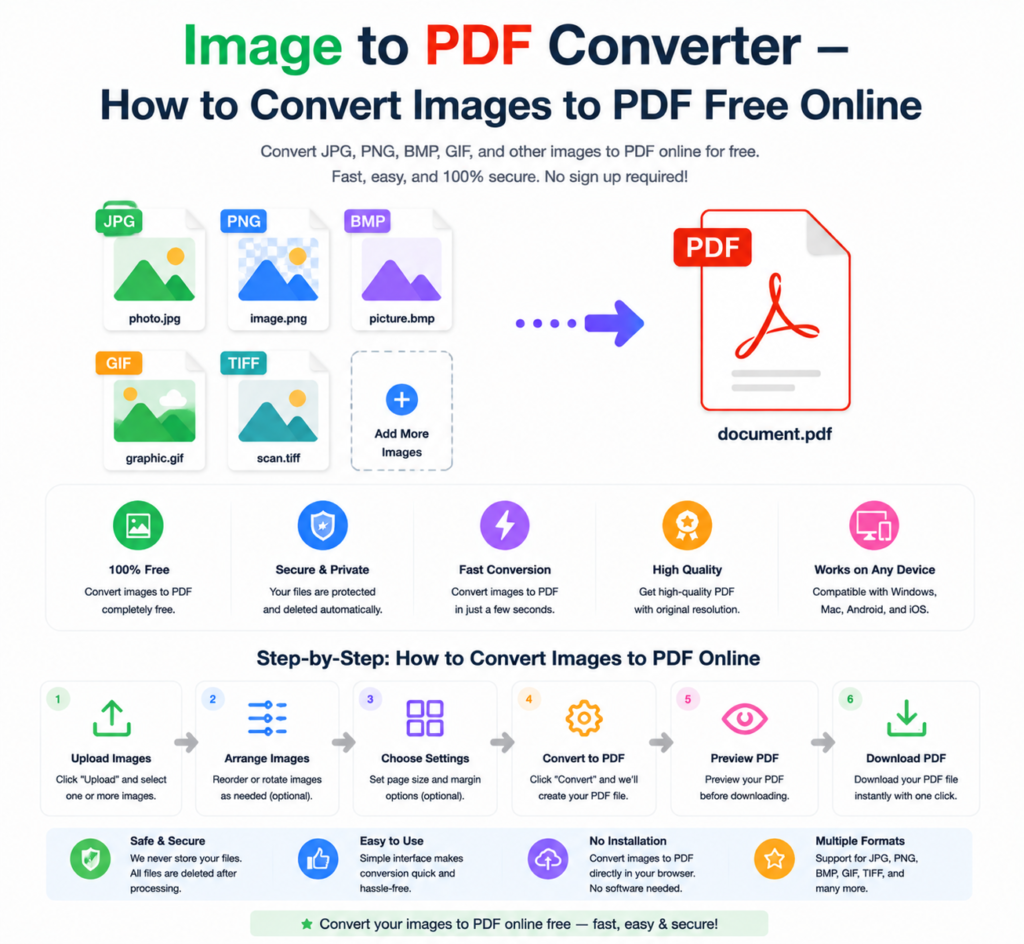
You’ve got a stack of photos, screenshots, or scanned images — and you need them in a single, shareable PDF document. Maybe it’s a collection of receipts for an expense report. Product photos for a client. Pages of a handwritten document you photographed with your phone. Whatever the case, converting images to PDF is one of the most practical document tasks around.
This guide shows you exactly how to use a free image to PDF converter online — no software, no signup, works on any device.
Which Image Formats Can Be Converted to PDF?
Most online image to PDF converters support a wide range of formats:
- JPG / JPEG — Most common photo format, works perfectly
- PNG — High quality images with transparency support
- HEIC — iPhone photos in Apple’s format
- BMP — Windows bitmap images
- GIF — Animated or static GIF images
- TIFF — High resolution images used in professional photography and scanning
- WebP — Modern web image format
OneClickPDFConvert’s image to PDF converter supports all major image formats — so whatever type of image you have, it’s covered.
Why Convert Images to PDF?
Images are great — but they have limitations when it comes to sharing and organising. PDF solves these problems neatly:
- Combine multiple images into one file — Instead of sending 10 separate JPGs, send one clean PDF
- Universal compatibility — PDFs open on every device without special software
- Consistent layout — Images display at the same size and orientation for every viewer
- Professional presentation — A PDF of product photos looks far more polished than a folder of JPGs
- Easy printing — PDFs print consistently across all printers
- Smaller sharing size — A compressed PDF of multiple images can be smaller than the original files combined
How to Convert Images to PDF Online — Step by Step
Using the free image to PDF converter at OneClickPDFConvert takes under a minute:
Step 1 — Open the Image to PDF Tool
Go to oneclickpdfconvert.com and select Image to PDF from the tools menu. No account, no signup — ready instantly.
Step 2 — Upload Your Images
Click to upload or drag and drop your image files. You can upload a single image or multiple images at once — JPG, PNG, HEIC, and other formats are all accepted.
Step 3 — Arrange the Order
If you’re combining multiple images, drag them into the order you want them to appear in the final PDF. First image becomes page one, second becomes page two, and so on.
Step 4 — Choose Page Settings
Select your preferred page size — A4, Letter, or fit to image. Choose portrait or landscape orientation based on your images.
Step 5 — Convert and Download
Click Convert. Your images are combined into a single PDF document. Click Download and your PDF saves directly to your device.
How to Combine Multiple Images Into One PDF
This is one of the most useful features of an image to PDF converter — turning a collection of separate images into a single organised document.
Common use cases for combining images into one PDF:
- Expense reports — Combine all receipt photos into one submission document
- Property inspection — Multiple room photos in a single organised report
- Portfolio — Design work, artwork, or photography presented as a professional PDF
- Medical documents — Multiple prescription or test result photos in one file
- Academic submissions — Handwritten assignments photographed page by page
- Product catalogues — Product photos organised into a shareable document
Convert iPhone Photos to PDF
iPhone photos save in HEIC format by default — which many devices and platforms can’t open. Converting them to PDF solves the compatibility problem instantly.
- Open oneclickpdfconvert.com in Safari on your iPhone
- Tap Image to PDF
- Tap upload and select photos from your camera roll
- Arrange if combining multiple photos
- Convert and save the PDF to your Files app
The entire process works smoothly on iPhone — no app download, no iCloud required.
Convert Screenshots to PDF
Screenshots are one of the most common images people need to convert to PDF — for reports, documentation, bug reports, or keeping records of conversations and transactions.
Upload your screenshots the same way as any other image. If you have multiple screenshots to document a process, upload them all and arrange them in sequence — you get a perfectly organised PDF walkthrough.
Convert Scanned Documents to PDF
If you’ve scanned paper documents as image files (JPG or PNG), converting them to PDF is the natural next step:
- Scanned pages become proper PDF pages
- Multiple scanned pages combine into a multi-page document
- The resulting PDF is easier to share, archive, and print than loose image files
For scanned documents where you need searchable text, consider using OCR (Optical Character Recognition) after conversion — this makes the text in your scanned PDF selectable and searchable.
Image to PDF on Android
- Open oneclickpdfconvert.com in Chrome on your Android phone
- Select Image to PDF
- Upload images from your gallery or Google Drive
- Arrange, convert, and download your PDF
Works perfectly on all Android devices — Samsung, OnePlus, Xiaomi, and others.
Image to PDF Page Size — Which to Choose?
Choosing the right page size matters for how your PDF looks:
- A4 — Standard international paper size. Best for documents, reports, and most professional uses
- Letter — Standard US paper size. Choose this for documents destined for US recipients or printers
- Fit to image — PDF page size matches the image dimensions exactly. Best for photos where you want no white borders
For most everyday conversions, A4 is the safe default choice.
How to Make Images Fit Perfectly on PDF Pages
Getting images to fill the page cleanly without awkward borders takes a bit of planning:
- Crop images to standard aspect ratios before converting
- Use “Fit to image” page size for photos
- Use A4 or Letter size for document-style images with a white background
- Rotate landscape images to landscape orientation before uploading
Image to PDF vs Scanning to PDF — What’s the Difference?
Scanning to PDF means using a physical scanner or scanning app to capture a paper document directly as a PDF. Image to PDF means converting existing image files (already on your device) into PDF format.
The end result is similar — a PDF document. The difference is just the starting point. If you have photos or image files already saved, the image to PDF converter is the tool you need.
Common Image to PDF Problems and Quick Fixes
Images Look Blurry in the PDF
This happens when the original image has low resolution. The converter doesn’t reduce quality — a blurry PDF means the source image was already low resolution. Use higher quality photos for better results.
Images Are Rotated Incorrectly in the PDF
Rotate your images to the correct orientation before uploading. Most image viewers and photo apps have a simple rotate option.
PDF File Is Too Large
After converting, use the PDF compressor to reduce file size. This is especially useful when combining many high-resolution photos.
Wrong Page Order in the Combined PDF
Drag images into the correct order in the upload interface before clicking Convert. Always double-check the sequence before converting.
Final Thoughts
Converting images to PDF is one of those tasks that sounds simple — and with the right tool, it genuinely is. Whether you’re combining receipts, creating a photo portfolio, organising scanned documents, or sharing iPhone photos in a universal format, a good image to PDF converter handles it in seconds.
No software. No cost. No complicated steps. Just upload, arrange, convert, download.
👉 Convert images to PDF free — try it now at OneClickPDFConvert
Frequently Asked Questions About Image to PDF Conversion
Is the image to PDF converter free?
Yes — completely free. No account, no subscription, no hidden charges.
Which image formats are supported?
JPG, PNG, HEIC, BMP, GIF, TIFF, WebP and other major formats are all supported.
Can I combine multiple images into one PDF?
Yes — upload multiple images, arrange them in order, and convert to get a single multi-page PDF.
Will image quality be reduced in the PDF?
No — the converter preserves your original image quality. The PDF quality matches your source images.
Can I convert images to PDF on my phone?
Yes — works on iPhone and Android in any mobile browser. No app download needed.
What page size should I choose for my PDF?
A4 works for most documents. Use “Fit to image” for photos where you want no white borders.
Can I convert HEIC photos from my iPhone to PDF?
Yes — HEIC format is fully supported. Upload directly from your iPhone camera roll.
Is my data safe when uploading images?
Yes — files are processed securely and automatically deleted from servers after conversion.