
You’ve built a detailed spreadsheet — clean data, neat formatting, carefully arranged columns. Then someone asks for it as a PDF. The problem? When you try to print or export it yourself, columns get cut off, fonts change, and the whole layout falls apart.
Converting Excel to PDF correctly — keeping every column, row, and formula result exactly as it appears on screen — requires the right approach. This guide shows you how to do it free, online, in under a minute.
Why Convert Excel to PDF?
Spreadsheets are powerful — but they’re not always the right format for sharing. Here’s why converting Excel to PDF makes sense:
- Universal viewing — Not everyone has Excel installed. PDFs open on any device without software
- Locked formatting — PDF preserves your layout exactly — no shifting columns or changed fonts
- Prevent editing — Share data without allowing others to modify figures or formulas
- Professional presentation — PDFs look cleaner and more polished for client reports and invoices
- Smaller file size — PDF versions of spreadsheets are often smaller than .xlsx files
- Easy printing — PDFs print consistently across all printers and devices
How to Convert Excel to PDF Online — Step by Step
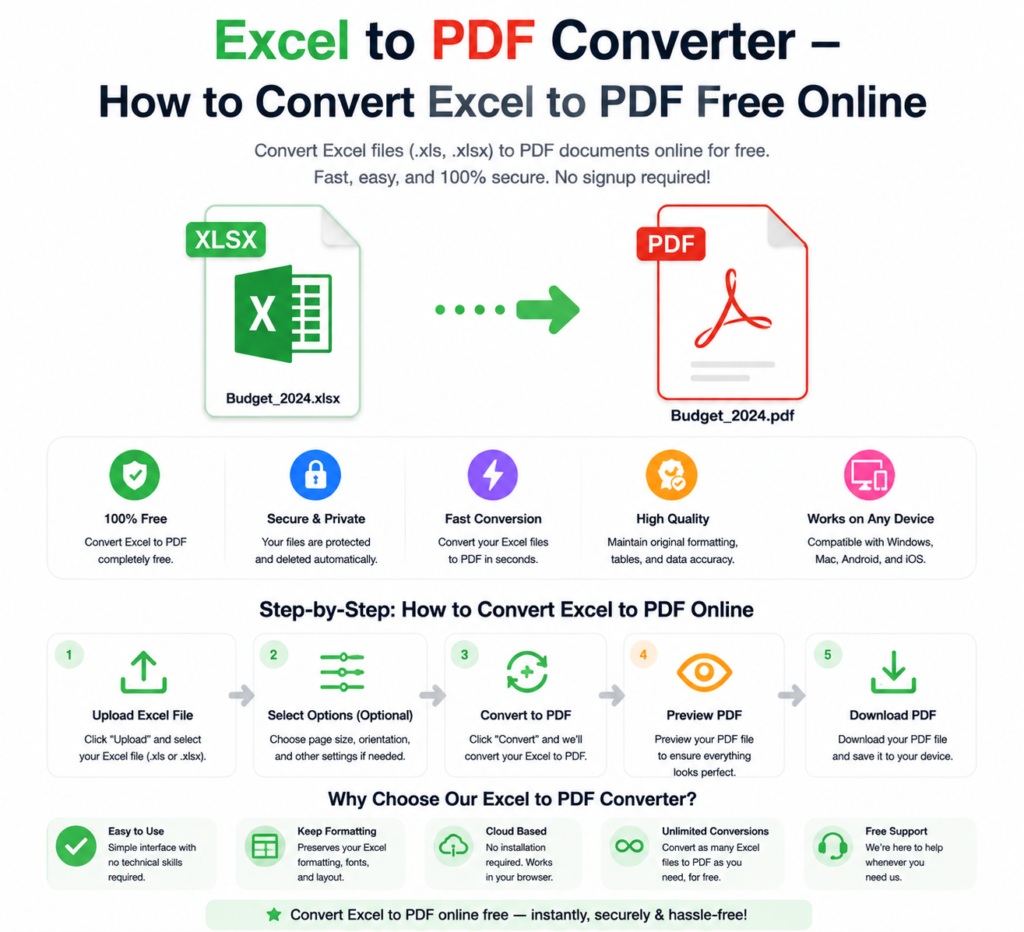
Using the free Excel to PDF converter at OneClickPDFConvert is fast and straightforward:
Step 1 — Open the Excel to PDF Tool
Go to oneclickpdfconvert.com and select Excel to PDF from the tools menu. No account, no signup — ready to use instantly.
Step 2 — Upload Your Excel File
Click to upload or drag and drop your .xlsx or .xls file onto the converter. Both old and new Excel formats are fully supported.
Step 3 — Convert
Click Convert. The tool processes your spreadsheet and generates a PDF that matches your original layout — columns, rows, formatting, and all data intact.
Step 4 — Download Your PDF
Once conversion is complete, click Download. Your Excel spreadsheet is now a perfectly formatted PDF — ready to share, email, or print.
Will Excel Formatting Stay Intact After Conversion?
This is the most important question — and the answer is yes, for most standard spreadsheets.
What converts well:
- Cell formatting — fonts, colours, borders, shading
- Column widths and row heights
- Merged cells and cell alignment
- Charts and graphs embedded in the sheet
- Headers and footers
- Calculated values from formulas (the results show, not the formulas)
What to watch out for:
- Very wide spreadsheets may need page break adjustments
- Macros and interactive elements don’t carry over to PDF
- Multiple sheets convert as separate pages or separate PDFs depending on the tool
How to Convert Excel to PDF Without Cutting Off Columns
Column cutoff is the most common Excel to PDF problem. Here’s how to prevent it:
- Before uploading: In Excel, go to Page Layout → Orientation → select Landscape for wide spreadsheets
- Use Fit to Page: In Excel, go to Page Layout → Scale to Fit → set Width to 1 page
- Reduce column widths: Narrow columns that contain short data to fit everything on one page
- Adjust margins: In Excel, set margins to Narrow before converting
Making these adjustments before uploading ensures your PDF comes out perfectly formatted every time.
Convert Excel to PDF on Mac
Mac users have a built-in option — File → Print → Save as PDF — but it often produces inconsistent results with complex spreadsheets. The online converter gives cleaner, more reliable output:
- Open oneclickpdfconvert.com in Safari or Chrome
- Select Excel to PDF
- Upload your file
- Convert and download
Convert Excel to PDF on iPhone and Android
Need to convert on mobile? The Excel to PDF converter works on any mobile browser:
- Open oneclickpdfconvert.com on your phone
- Tap Excel to PDF
- Upload your .xlsx file from your device or cloud storage
- Convert and download the PDF
This is particularly useful when someone requests a PDF version of a spreadsheet and you only have your phone available.
Convert Multiple Excel Sheets to PDF
Workbooks with multiple sheets can be tricky. Here are your options:
- Convert the entire workbook — Each sheet becomes a separate page in the PDF
- Convert specific sheets — In Excel, right-click the sheet tab → Move or Copy → create a new workbook with just that sheet → convert that file
- Merge after converting — Convert each sheet separately, then use the PDF merge tool to combine them into one document
Excel to PDF vs Google Sheets to PDF
Working in Google Sheets instead of Excel? The process is similar:
- Google Sheets built-in: File → Download → PDF Document — works reasonably well for simple sheets
- Online converter: Download your Google Sheet as .xlsx first, then convert using OneClickPDFConvert for better formatting control
The online converter consistently produces better results for complex spreadsheets with charts, conditional formatting, or multiple sheets.
Use Cases — When to Convert Excel to PDF
Invoices and Receipts
Invoice templates built in Excel convert cleanly to PDF — professional looking and impossible for clients to accidentally modify.
Financial Reports
Monthly, quarterly, and annual reports need to look the same for every recipient. PDF guarantees consistent presentation regardless of who opens it.
Data Submissions
Many government portals, application forms, and academic submissions require PDF format. Converting your Excel data to PDF satisfies this requirement instantly.
Client Presentations
Sharing a pricing list or project budget? PDF looks far more professional than a raw spreadsheet file — and clients can’t accidentally edit the figures.
Common Excel to PDF Problems and Solutions
Columns Are Cut Off in the PDF
Set your spreadsheet to Landscape orientation and use Fit to Page scaling in Excel before converting.
Charts Are Missing in the PDF
Ensure charts are embedded in the sheet, not in separate windows. Re-insert any charts that appear as separate objects.
PDF Has Too Many Blank Pages
This happens when Excel’s print area extends beyond your data. In Excel, select your data range → Page Layout → Print Area → Set Print Area — then convert.
Formulas Show Instead of Values
This shouldn’t happen with a proper converter — the PDF should show calculated values, not formulas. If it does occur, convert to values in Excel first (Copy → Paste Special → Values) before converting.
Final Thoughts
Converting Excel to PDF is one of the most common workplace tasks — and one of the most frustrating when formatting breaks. The right online tool handles it cleanly, preserving your layout exactly as you built it.
No software subscription. No formatting headaches. Just upload, convert, download.
👉 Convert Excel to PDF free — try it now at OneClickPDFConvert
Frequently Asked Questions About Excel to PDF Conversion
Is the Excel to PDF converter free?
Yes — completely free. No account, no subscription, no hidden charges.
Will my Excel formatting be preserved in the PDF?
Yes — fonts, colours, borders, column widths, and embedded charts all transfer correctly for standard spreadsheets.
Can I convert .xls and .xlsx files?
Yes — both old (.xls) and new (.xlsx) Excel formats are fully supported.
Can I convert Excel to PDF on my phone?
Yes — works on iPhone and Android in any mobile browser. No app download needed.
What happens to formulas when converting to PDF?
Formulas show their calculated results in the PDF — not the formula text itself.
Can I convert a password-protected Excel file?
You’ll need to remove the Excel password first, then convert the unlocked file to PDF.
How do I prevent columns from being cut off in the PDF?
Use Landscape orientation and Fit to Page scaling in Excel before uploading for conversion.
Is my Excel data safe when uploaded?
Yes — files are processed securely and automatically deleted from servers after conversion.