
You’ve just finished a report, a portfolio, or a presentation. It looks great. Then you try to email it — and your email client throws an error. File too large. Sound familiar?
PDF compression is the fix. And no, compressing doesn’t mean ruining your document. Done right, you can shrink a PDF by 70-80% and it still looks crisp and professional.
Here’s everything you need to know.
Why Are PDF Files So Large?
Before compressing, it helps to understand what’s making your PDF heavy in the first place. Usually it’s one of these:
- High-resolution images — Photos embedded at full camera resolution bloat file size fast
- Embedded fonts — Fancy fonts stored inside the PDF add weight
- Unnecessary metadata — Hidden data that adds size without adding value
- Scanned pages — Scanned PDFs are essentially image files, which are naturally large
Knowing the cause helps you pick the right compression approach.
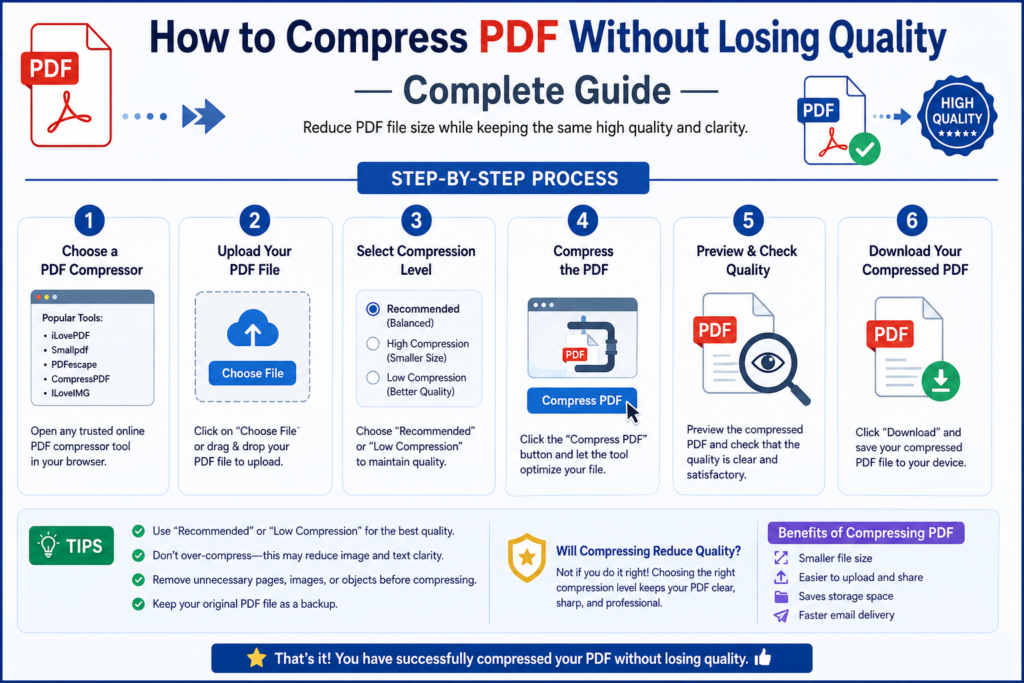
How to Compress a PDF Online — Step by Step
The fastest way is using OneClickPDFConvert’s free PDF Compressor. No software, no signup — just results.
Step 1 — Open the PDF Compressor
Head to oneclickpdfconvert.com and select PDF Compressor from the tools menu.
Step 2 — Upload Your PDF
Click to upload or drag and drop your PDF file directly onto the page. Large files are supported.
Step 3 — Choose Compression Level
Select your preferred compression level:
- Low compression — Smallest size reduction, highest quality
- Medium compression — Balanced size and quality (recommended for most files)
- High compression — Maximum size reduction, slight quality trade-off
Step 4 — Compress and Download
Hit Compress. Within seconds your compressed PDF is ready. Download it and you’re done.
How Much Can You Compress a PDF?
Results vary depending on what’s in your PDF — but here’s a realistic guide:
- Image-heavy PDFs — Can shrink by 60-80%
- Text-only PDFs — Usually 10-30% reduction
- Scanned PDFs — Often 40-70% reduction possible
- Mixed content PDFs — Typically 30-50% reduction
A 10MB presentation? It can easily come down to 2-3MB without any visible quality loss.
Does Compressing a PDF Reduce Quality?
Here’s the truth — it depends on the compression level you choose.
At low to medium compression, the difference is virtually invisible on screen and in print. At high compression, images may lose a bit of sharpness — but for documents that are mostly text, this barely matters.
The key is matching compression level to your purpose:
- Sending by email → Medium compression works perfectly
- Uploading to a website → Medium to high compression
- Printing professionally → Low compression only
- Archiving important documents → Low compression
When Should You Compress a PDF?
Not every PDF needs compression. But these situations definitely call for it:
- Email attachments over 10MB
- Uploading PDFs to websites or portals with size limits
- Sharing via WhatsApp or messaging apps
- Storing large batches of PDFs on limited storage
- Slow-loading PDFs on websites
Compress PDF on Mobile
No laptop? No problem. OneClickPDFConvert works on any browser — iPhone, Android, tablet. Open the site, upload your PDF, compress, download. The whole process takes under a minute on mobile.
PDF Compression vs PDF Optimization — What’s the Difference?
You’ll sometimes hear “optimize PDF” instead of “compress PDF.” They’re related but slightly different:
- Compression reduces image quality and removes redundant data to shrink size
- Optimization restructures the PDF for faster loading without necessarily reducing quality
For most everyday purposes — emailing, uploading, sharing — compression is what you need.
Tips to Keep PDF Size Small From the Start
Prevention is better than cure. Here’s how to avoid oversized PDFs in the first place:
- Resize images before inserting them into your document
- Use standard fonts instead of custom embedded ones
- Export at screen resolution (72-96 DPI) instead of print resolution (300 DPI) when quality isn’t critical
- Remove unused pages and blank spaces before saving as PDF
Final Thoughts
Compressing a PDF is one of those tasks that sounds technical but takes about 30 seconds with the right tool. Whether you’re trying to squeeze under an email size limit or speed up a file upload, a good PDF compressor handles it instantly — no quality sacrifice required.
Give it a try — compress your PDF free at OneClickPDFConvert.
Frequently Asked Questions
Is the PDF compressor free to use?
Yes — completely free, no account required.
Will my PDF lose quality after compression?
At low to medium compression, quality loss is minimal and often invisible. High compression may reduce image sharpness slightly.
What is the maximum file size I can upload?
Large files are supported — check the tool page for current limits.
Is my PDF safe when uploaded?
Yes. Files are processed securely and not stored after compression.
Can I compress a password-protected PDF?
You’ll need to remove the password first using the PDF password remover tool, then compress.
Does compression work on scanned PDFs?
Yes — scanned PDFs are image-based, so compression can significantly reduce their size.